Services and categories
Build a clear service list with prices, durations, descriptions, and optional categories customers can browse.
See the booking flowWORDPRESS APPOINTMENT BOOKING
ServiCal helps service businesses manage services, staff schedules, appointments, and customer payments from one WordPress dashboard.
THE BOOKING TOOLS YOU NEED
Bring services, staff schedules, customer bookings, and payment choices together in one clear WordPress workflow.
Build a clear service list with prices, durations, descriptions, and optional categories customers can browse.
See the booking flowAssign staff to services and schedules. Availability updates as each team member’s appointments are booked.
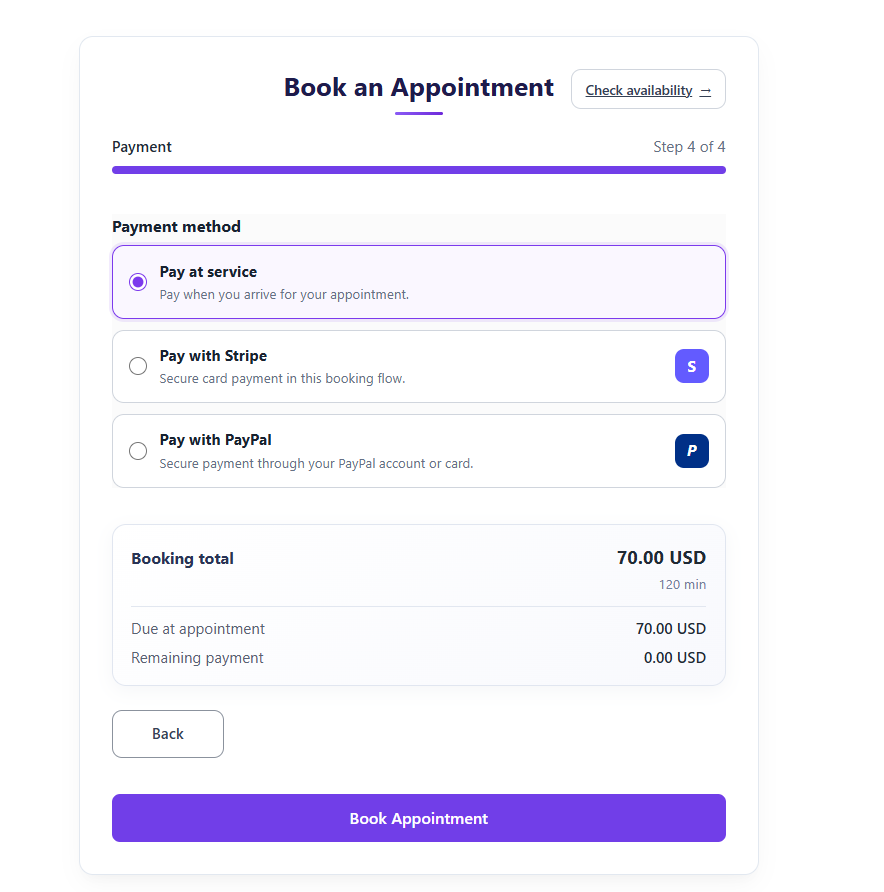
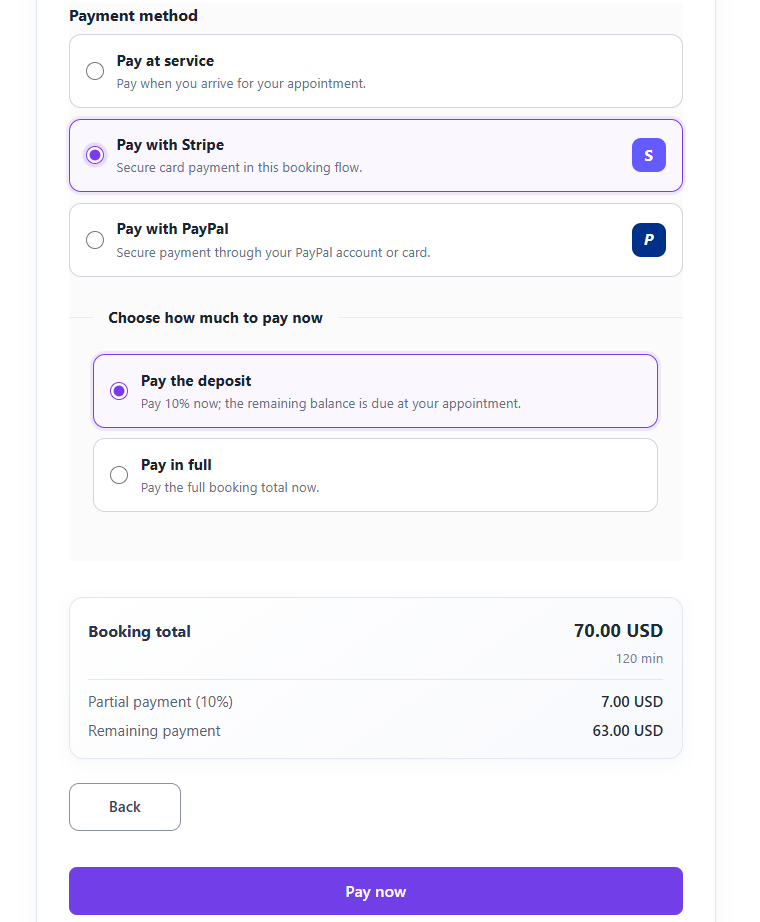
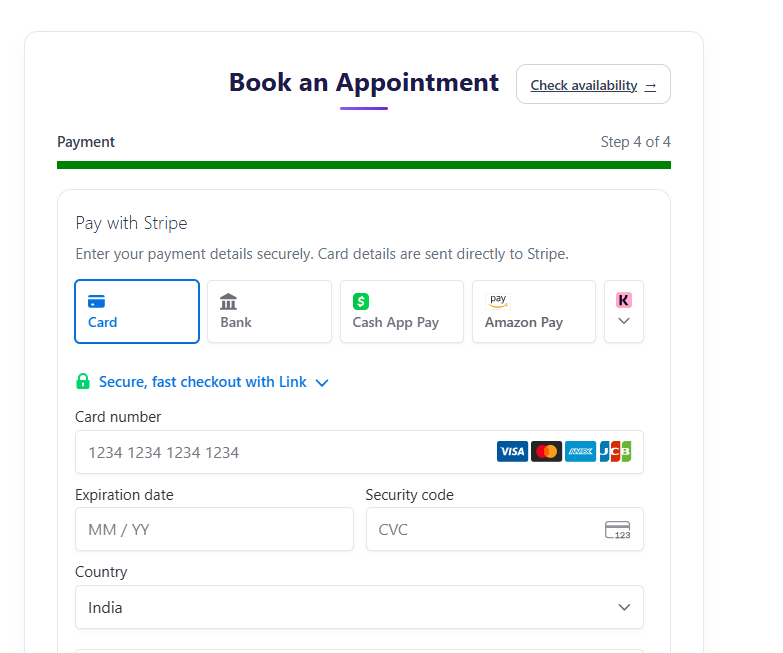
Explore the calendarOffer pay at service, Stripe, or PayPal. Enable deposits and let customers choose a deposit or full payment.
See payment optionsCustomers can review appointments, request a new time, or cancel a booking from their account page.
View the account demoSend booking confirmations, reschedule notices, cancellation updates, and appointment reminders.
Learn how it worksReview appointments in a calendar, sync with the administrator’s Google Calendar, or prepare a printable daily call list.
View the calendar previewBuilt for WordPress. No WooCommerce required. Add ServiCal to your site and manage appointment bookings directly in WordPress.
ONE BOOKING PLUGIN, MANY POSSIBILITIES
ServiCal is a flexible WordPress appointment booking plugin for businesses that schedule services, people, and time slots. Set up your services and staff, then let customers book online from your website.
Made for WordPress. No WooCommerce required.
Manage services, schedules, and customer bookings from one place.
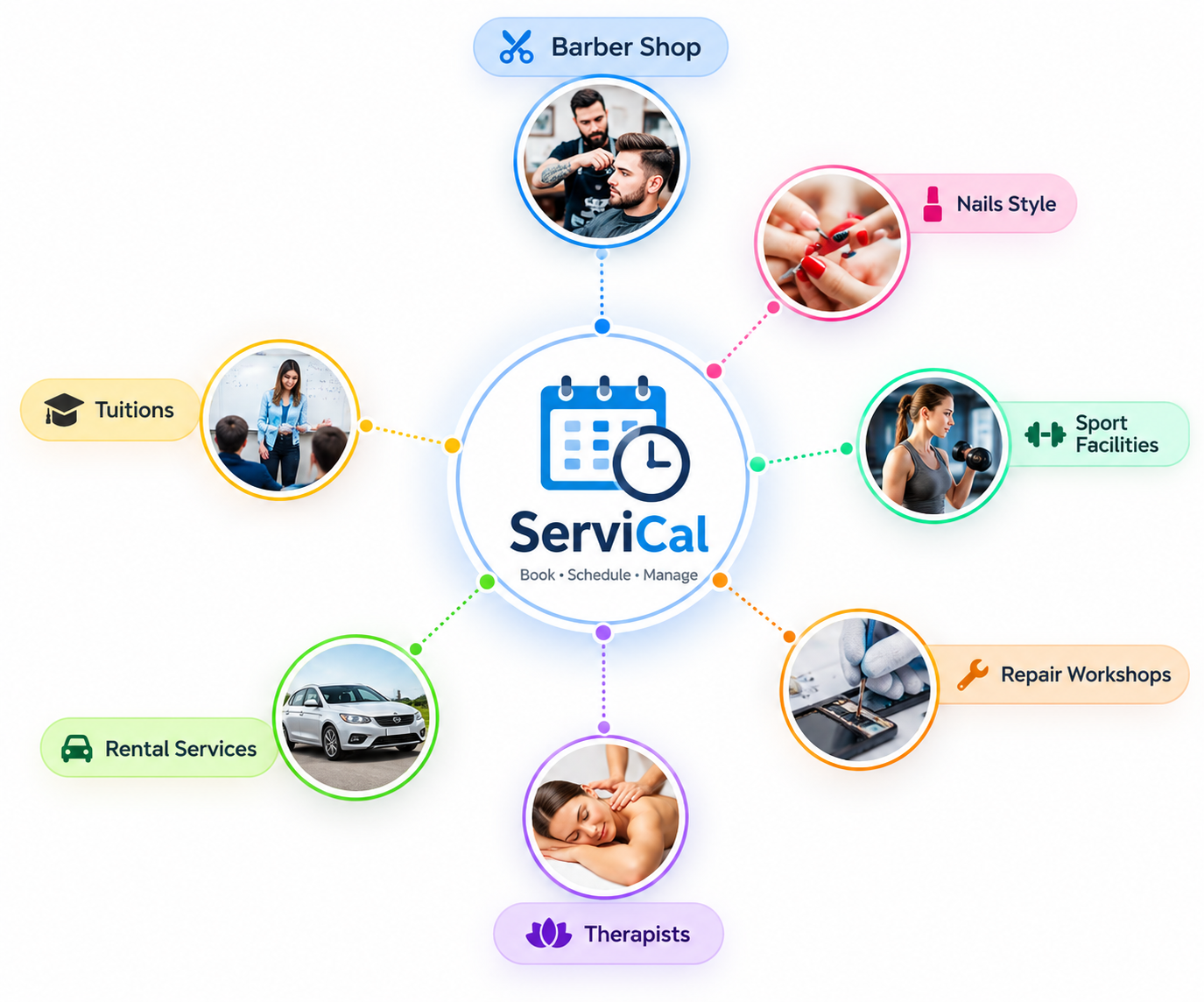
A SERVICAL BUSINESS DEMO
Show your salon services, introduce your team, and let clients book an appointment online at a time that suits them. ServiCal brings the booking journey directly to your WordPress website.
A CLOSER LOOK
See real front-end screenshots, from choosing services and a time to entering details and paying online.
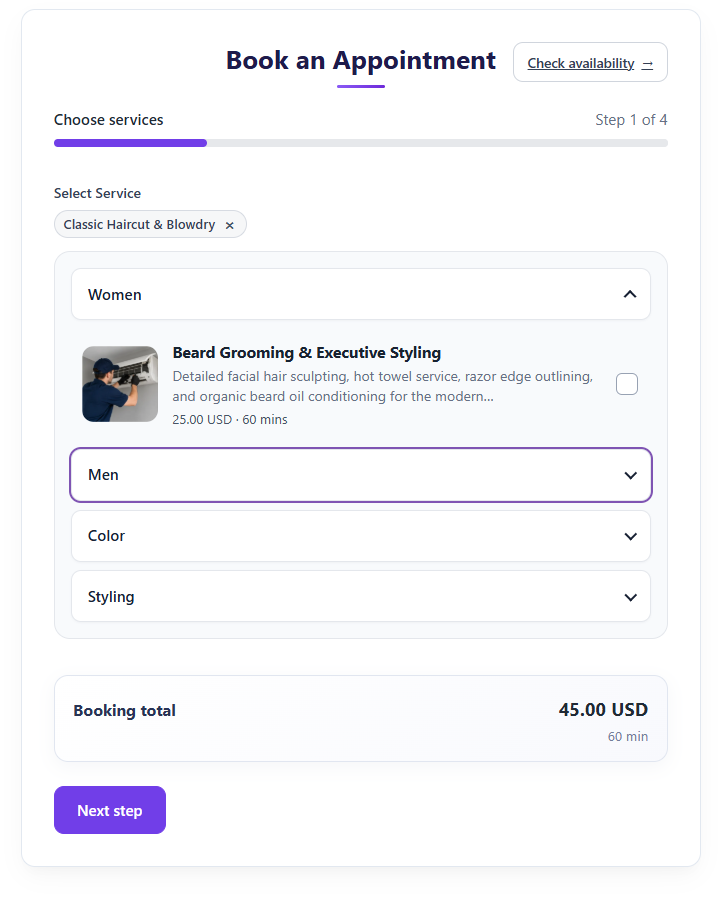
Customers can start by browsing the service categories you offer.
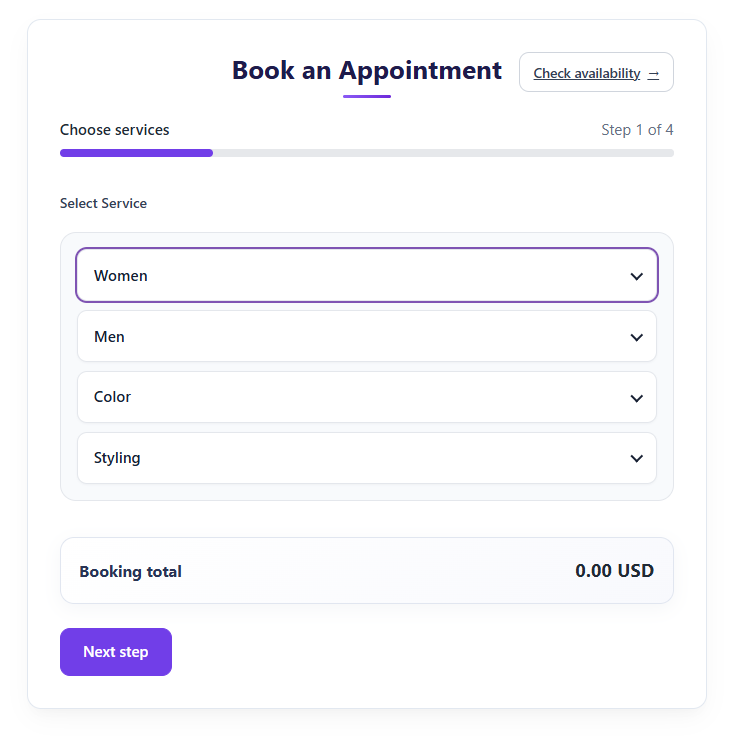
Front-end screenshot 1 of 8
BOOKING THAT FITS EVERY SCREEN
ServiCal makes online appointment booking clear on mobile, tablet, and desktop. Customers can browse services, choose a staff member, check available times, and submit a booking through your WordPress website.
Try the booking form

A SIMPLE CUSTOMER BOOKING FLOW
ServiCal guides customers through service selection, staff availability, appointment details, and payment in a clear, step-by-step WordPress booking experience.
Browse service categories, compare prices and durations, then select the services you need.
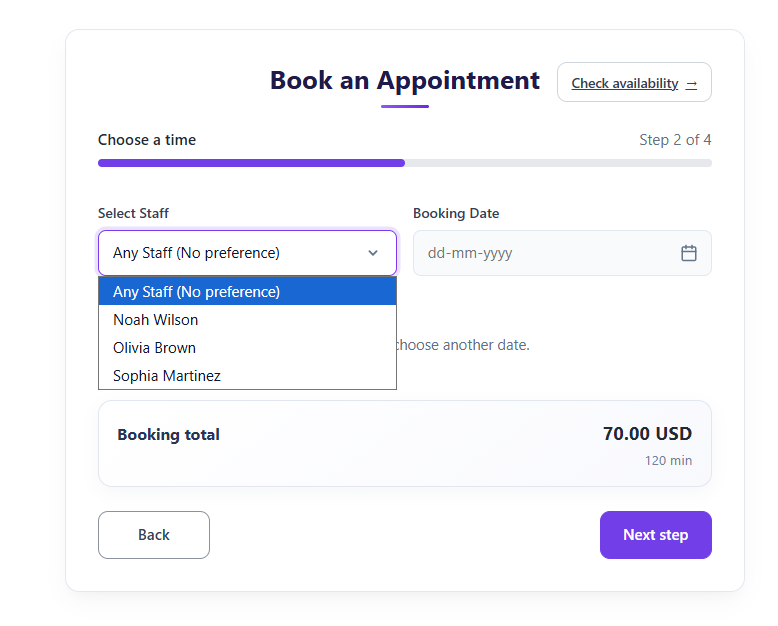
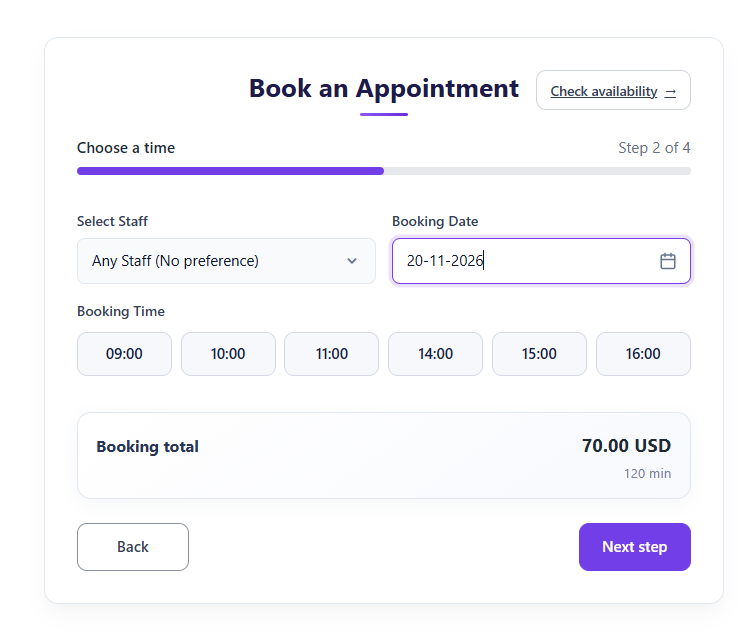
Choose a preferred team member or no preference, then select an available appointment time.
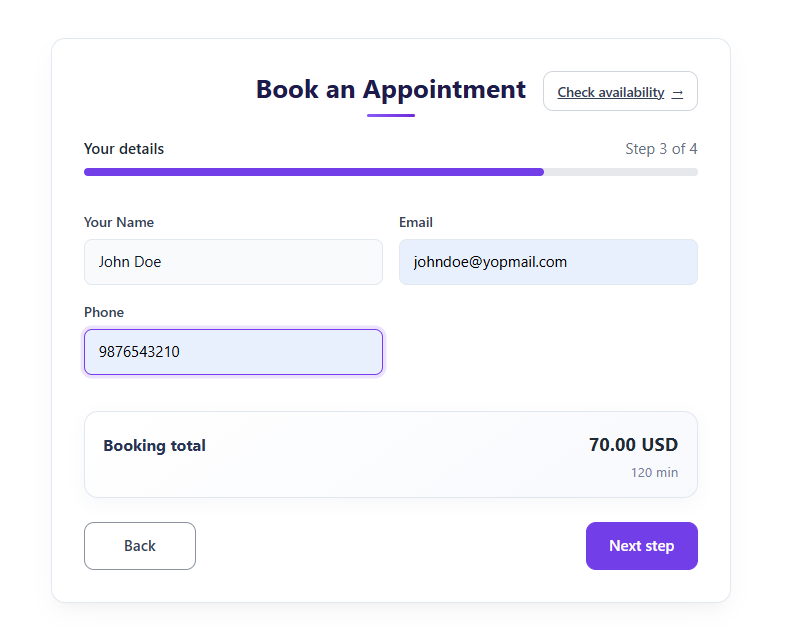
Add contact details for the appointment. Signed-in customers can use their saved account information.
Use an enabled option such as pay at service, Stripe, or PayPal, then review the booking summary.
Explore the customer booking form in the live demo.
Try the booking demoQUICK PRODUCT WALKTHROUGH
Take a quick look at the ServiCal WordPress booking system. See how to set up services and staff, choose working hours, accept customer appointments, and manage bookings from your dashboard.
This short video is an overview to help you get started. It does not cover every setting or feature.
Set up your servicesAdd services, prices, and durations.
Set staff availabilityOrganize staff schedules and available times.
Manage customer bookingsFollow bookings from request to appointment.
A quick tour of the customer booking flow and the WordPress admin.
TRY SERVICAL YOURSELF
Open a demo to experience the customer booking flow, calendar, and account area.
CONNECTED WORKFLOWS
Keep customers informed, review your schedule, and manage payments from the WordPress admin.
GOOD TO KNOW
No. ServiCal is a WordPress booking plugin and manages appointments directly in WordPress. Online payments can be enabled through its supported payment gateways.
Yes. Add staff, assign services, set working schedules, and let customers select a staff member or choose no preference.
You can enable pay at service, Stripe, and PayPal in the plugin settings. When partial payments are enabled, customers using an online gateway can choose a deposit or full payment.
Use the ServiCal booking page created during setup, or add the [servical_booking_form] shortcode to a WordPress page.
Yes. Create service categories and assign services to them. If categories are enabled, customers can browse grouped services; otherwise, they can see the full service list.
Set working hours for your staff and assign them to services. Available times reflect the selected staff member’s schedule and existing bookings, helping prevent overlapping appointments.
Yes. Configure service durations, booking intervals, buffer time between appointments, and minimum booking notice in the scheduling settings.
Customers can sign in to the My Appointment page to review their bookings and use the available reschedule or cancellation actions. Site settings determine whether an account is required to book.
ServiCal includes configurable customer emails for booking confirmations, cancellations, and schedule changes, plus appointment reminders. You can customize email content and sender details in the settings.
You can connect the administrator’s Google Calendar from the Integrations settings to sync booking events. Google Cloud OAuth credentials and calendar access are required.
Create discount offers with a code, percentage or fixed amount, and a validity period. Customers can apply eligible coupons during booking.
Yes. The Daily Bookings area lets administrators filter appointments by date range and download a printable PDF call list. Booking records can also be exported as CSV.
ServiCal can request reviews after completed appointments. Administrators can review submissions and display approved reviews with the review shortcodes.
READY WHEN YOU ARE
See how ServiCal fits your services and your WordPress site.
HERE TO HELP
Email our support team or send your purchase details using the form. Include your purchase code and a short description, and we’ll get back to you as soon as we can.
wpthemestoreuk24@gmail.comFor purchase questions, please include your purchase code and the email address used at checkout.