General
Set booking labels and references, service categories, account or email verification requirements, CAPTCHA options, and data retention on uninstall.
WordPress appointment booking
A practical guide to setting up services, staff schedules, online bookings, payments, customer emails, and appointment management in WordPress.
Welcome
ServiCal is an appointment booking and scheduling plugin for WordPress. It lets service businesses publish bookable services, assign staff, set business hours, accept customer reservations, and manage appointments from the WordPress admin area.
The plugin includes a guided booking form, an availability calendar, customer appointment pages, configurable email notifications, optional Stripe and PayPal payments, a Google Calendar connection for the administrator, and booking reports.
This guide describes the plugin options and shortcodes. Labels may vary slightly if you customize the form or update the plugin.
Before you begin
Install the plugin
servical-booking-scheduling folder to /wp-content/plugins/.Activation sets up the plugin's booking data structures and default customer-facing pages where needed. It does not require WooCommerce.
First-time setup
Admin settings
Open ServiCal → Settings. Settings are grouped into tabs. Save changes after updating each tab.
Set booking labels and references, service categories, account or email verification requirements, CAPTCHA options, and data retention on uninstall.
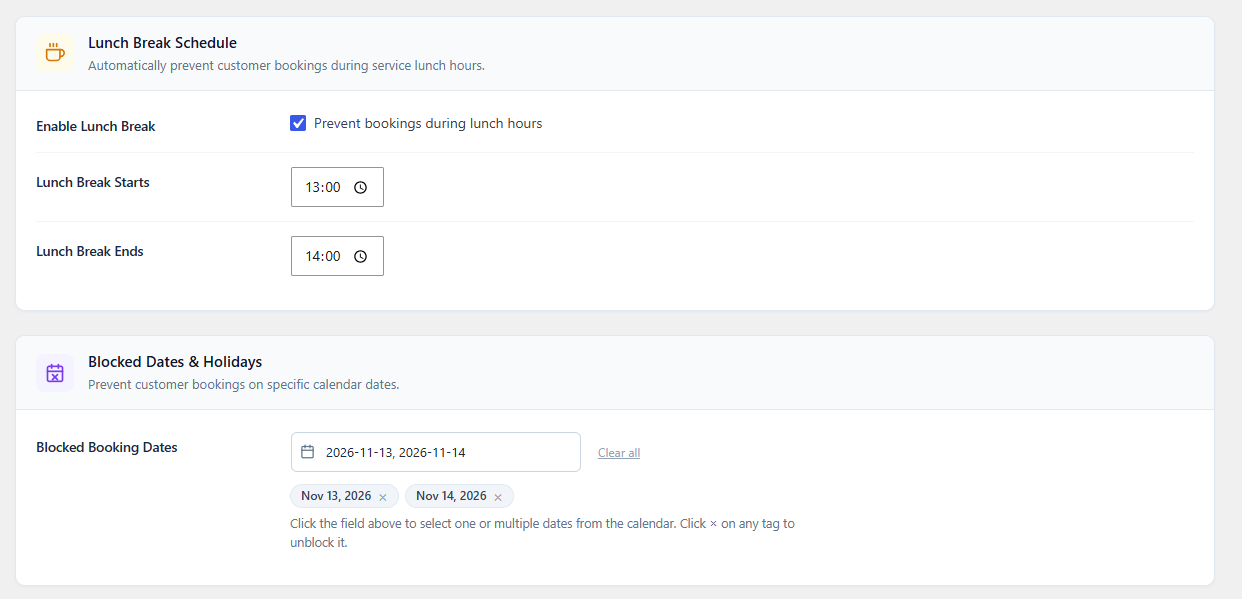
Set opening and closing hours, working days, break periods, blocked dates, slot duration, booking buffers, and the minimum booking notice.
Choose a currency, enable pay at service, configure deposits as a fixed amount or percentage, and connect Stripe or PayPal. Provider currency availability depends on the provider account and country.
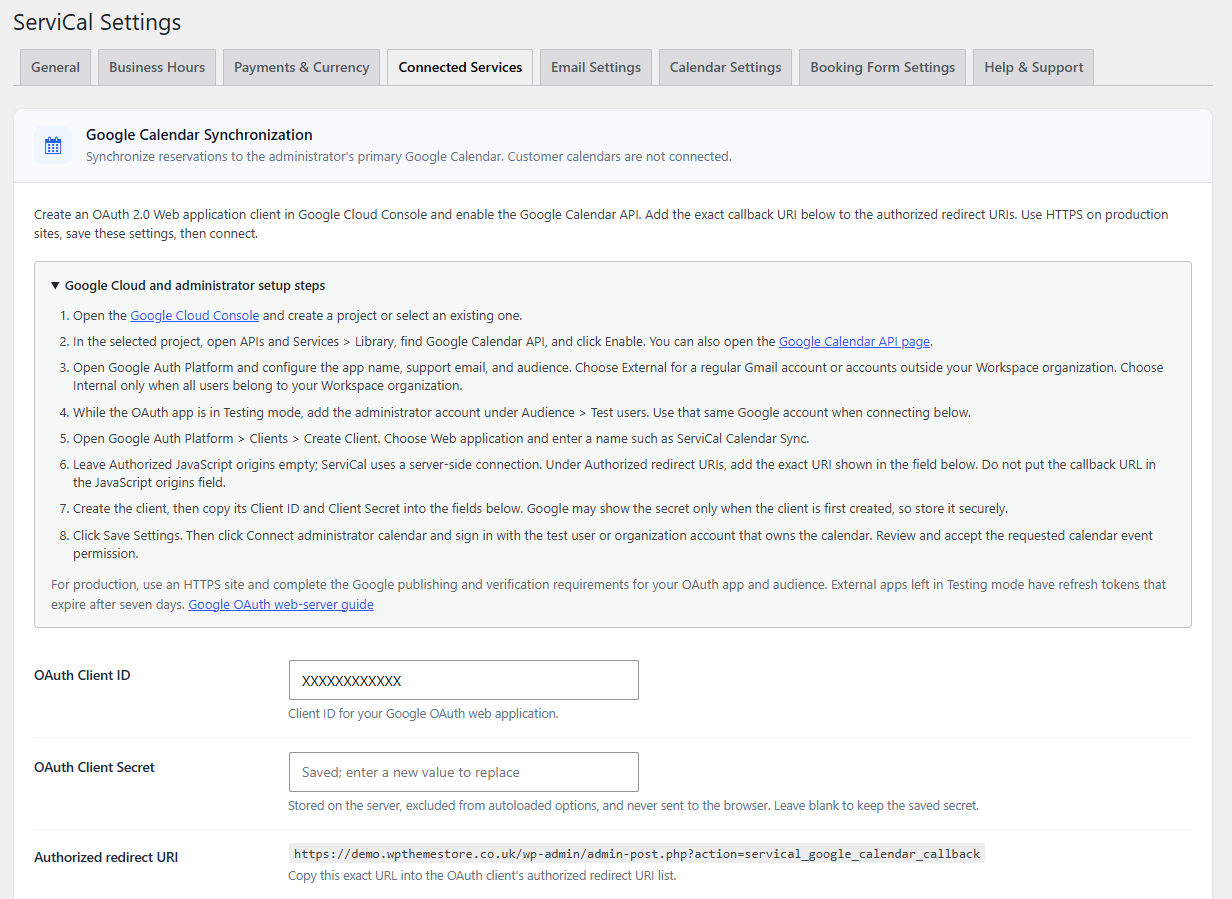
Connect the administrator's Google Calendar using a Google Cloud OAuth web application. The integration writes booking events to the authorized administrator calendar.
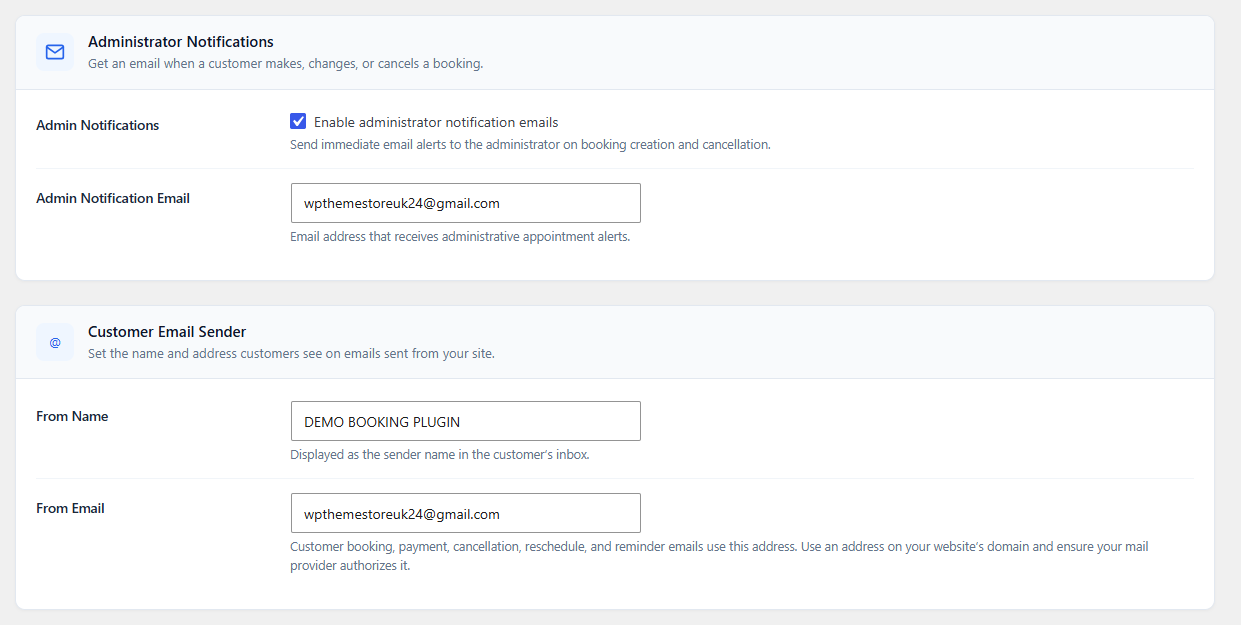
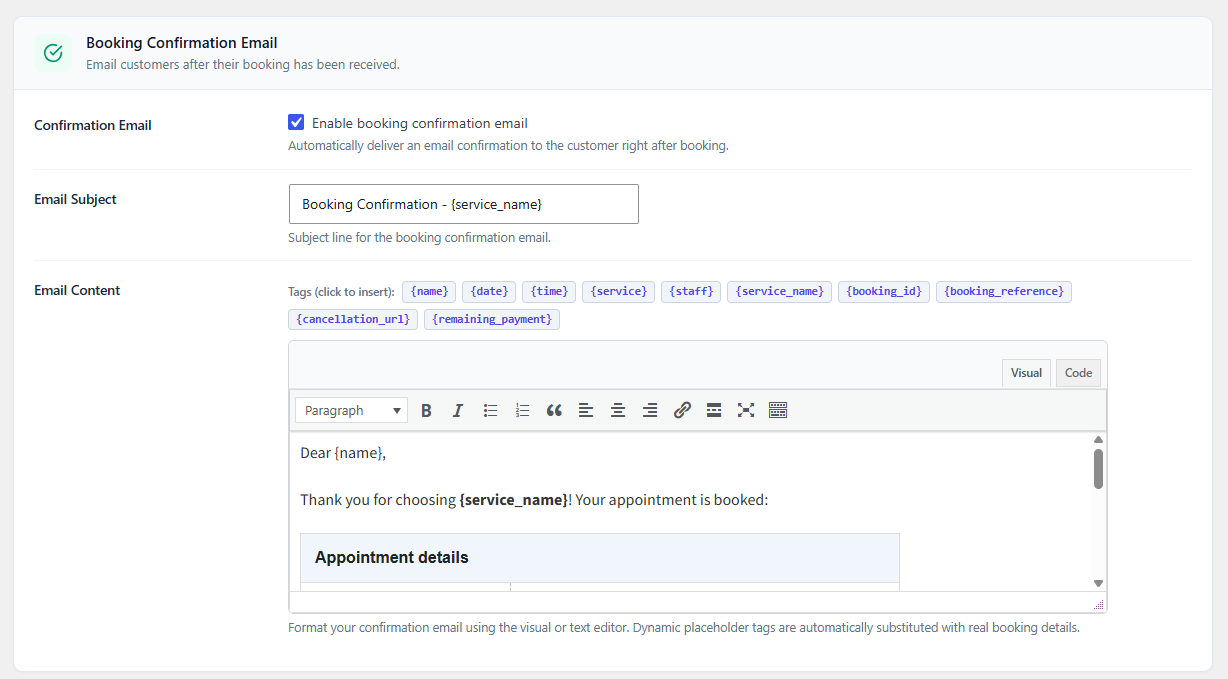
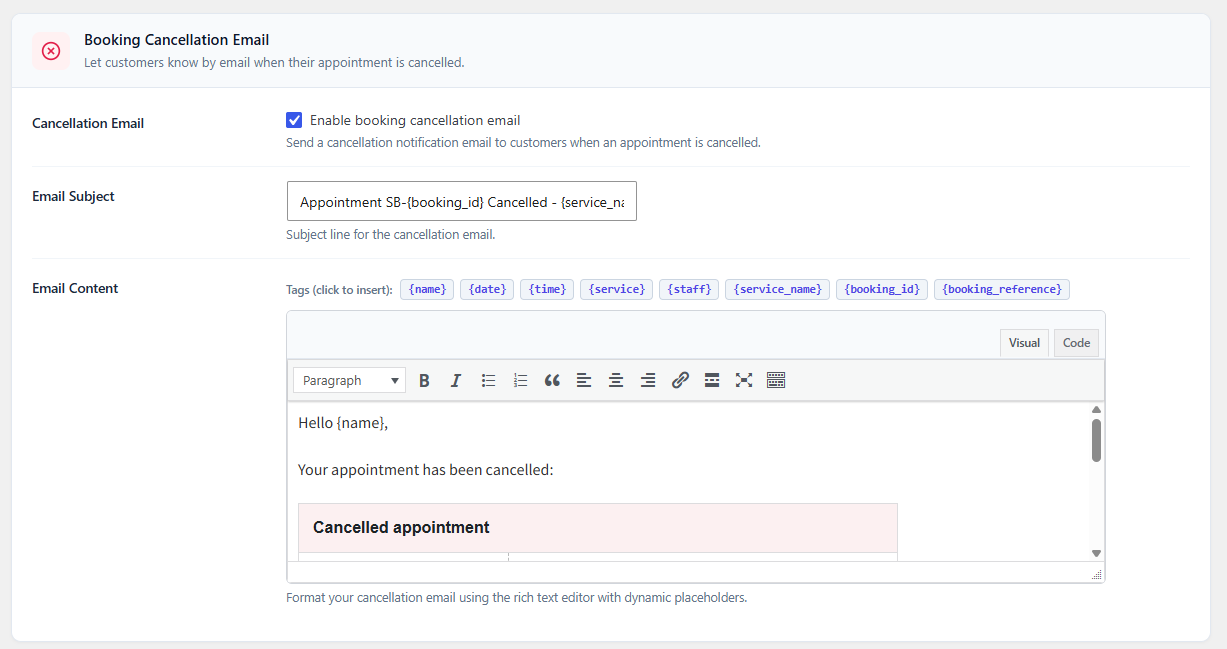
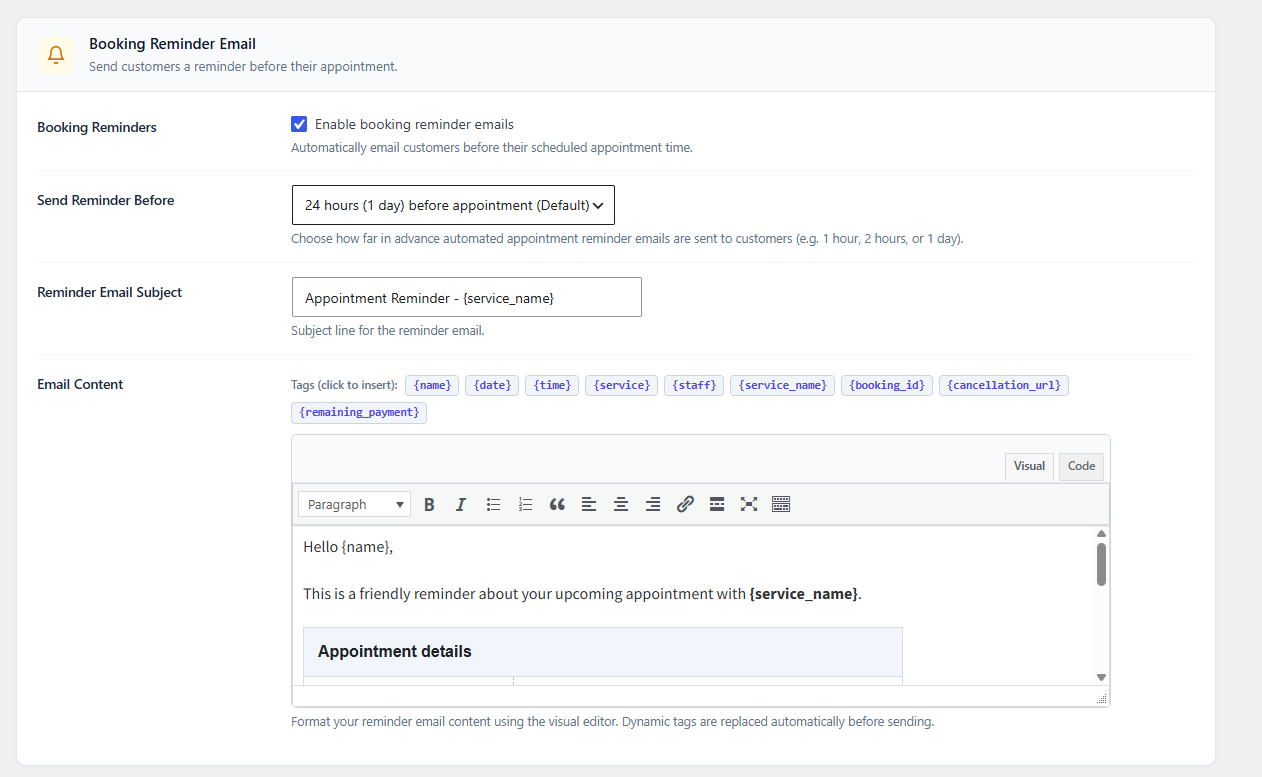
Set admin notifications, customer email sender details, and the content for booking confirmations, cancellations, reminders, reschedules, and promotional offers.
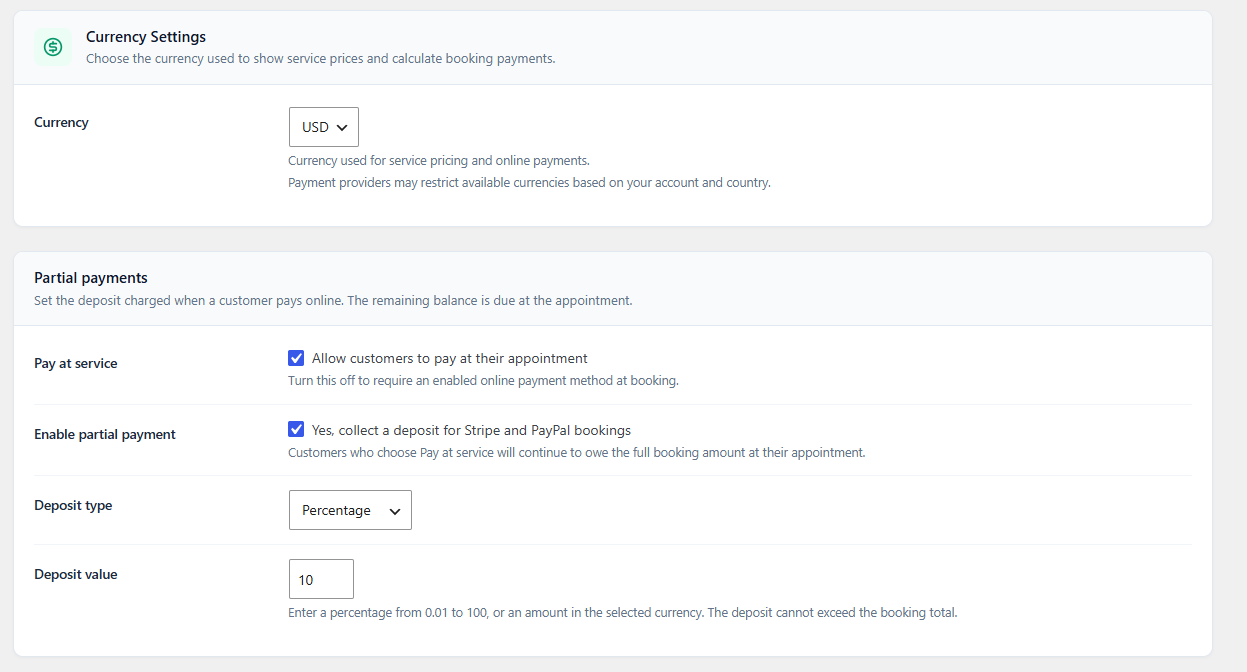
Adjust calendar appearance, date and time presentation, and the information displayed with scheduled appointments.
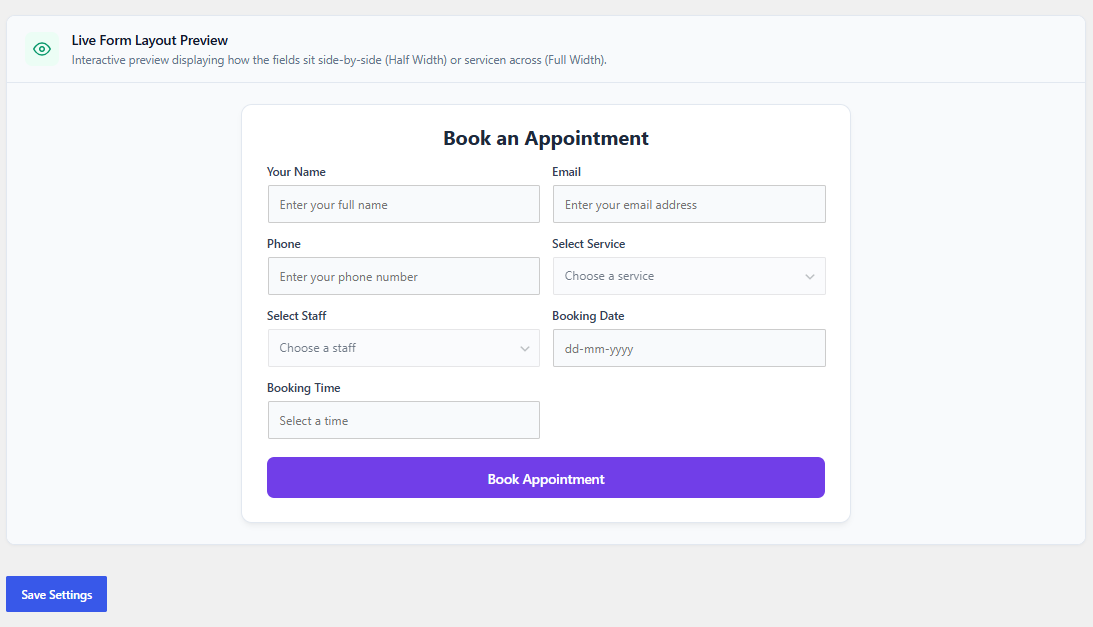
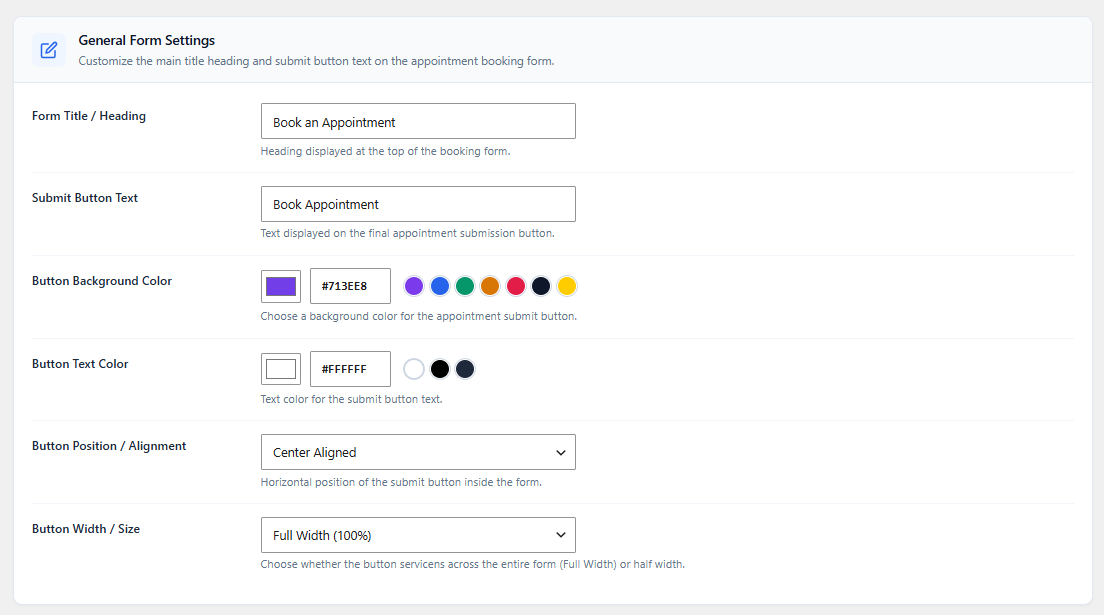
Customize form text, colors, button appearance, customer account labels, field labels, placeholders, and field layout.
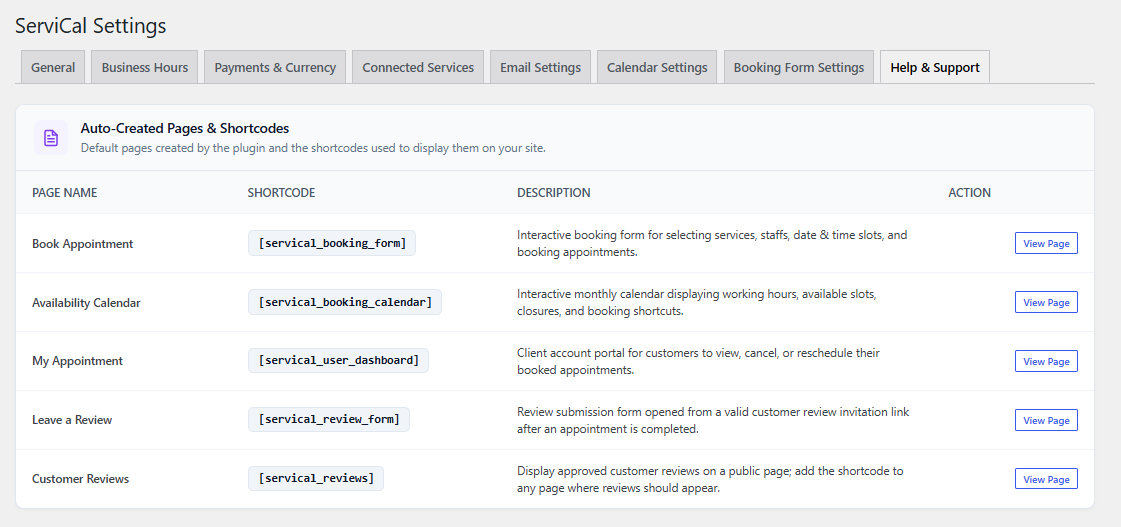
Find the generated pages and shortcodes, including the review form and approved-review display.
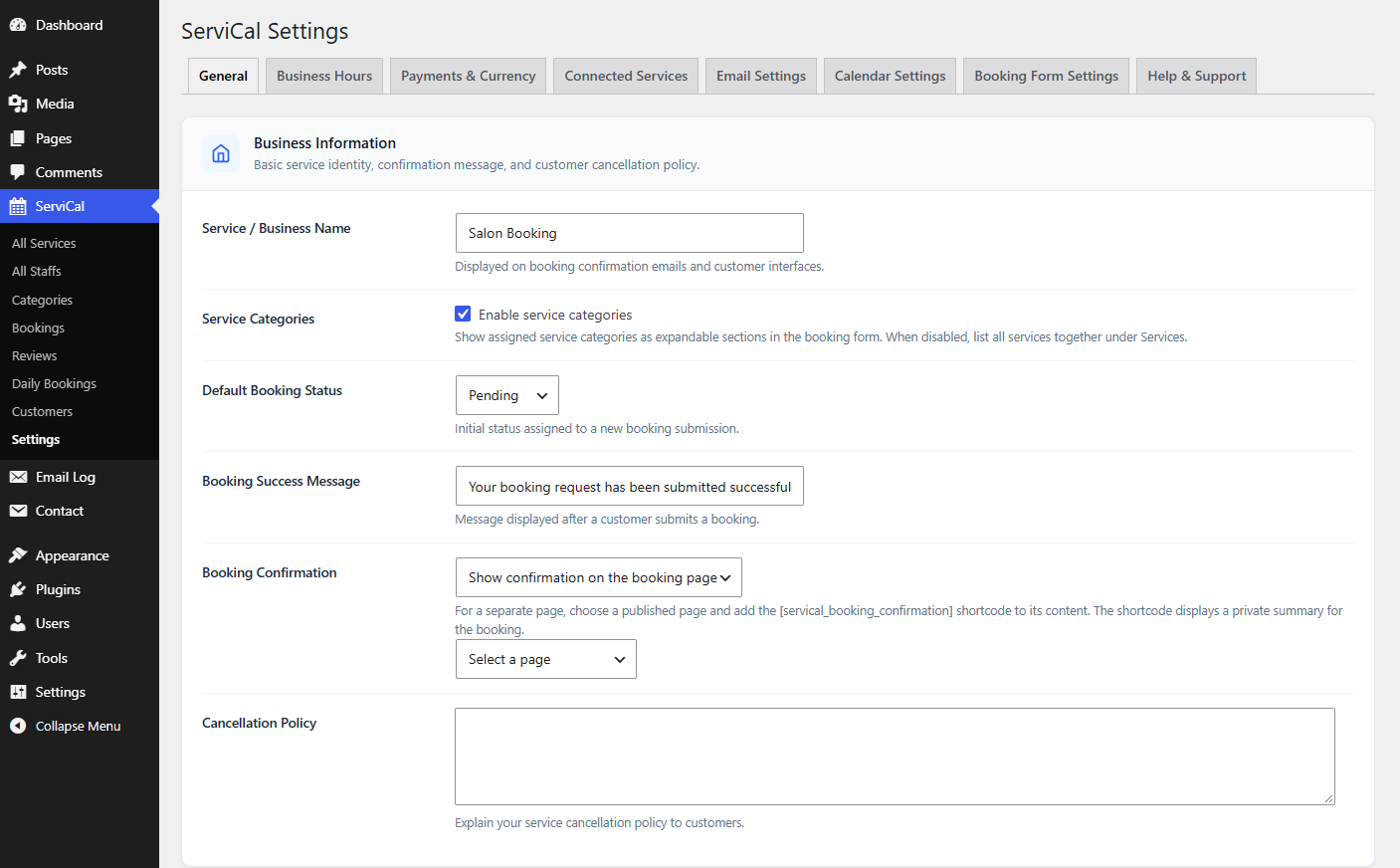
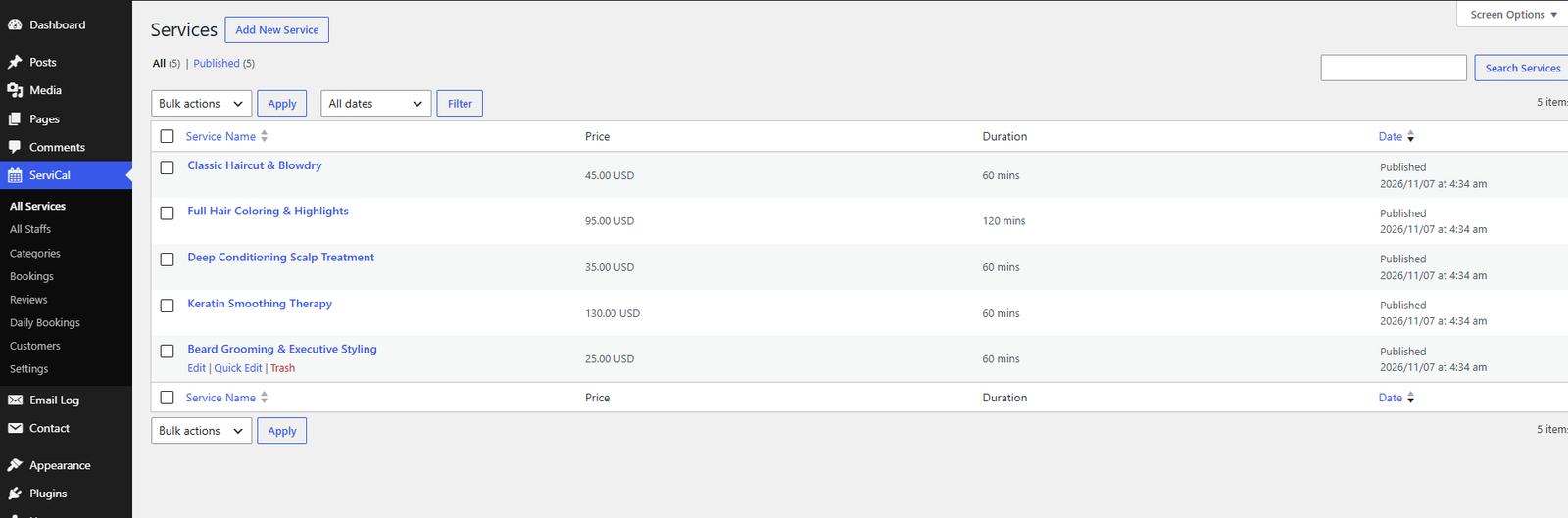
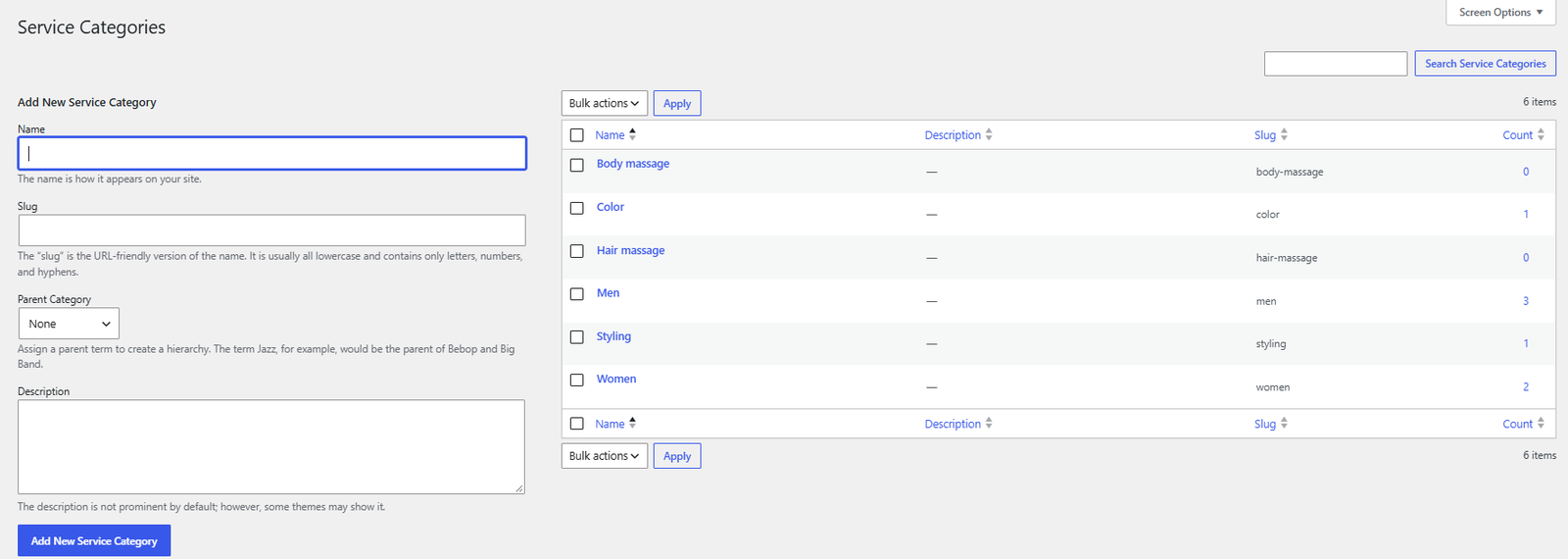
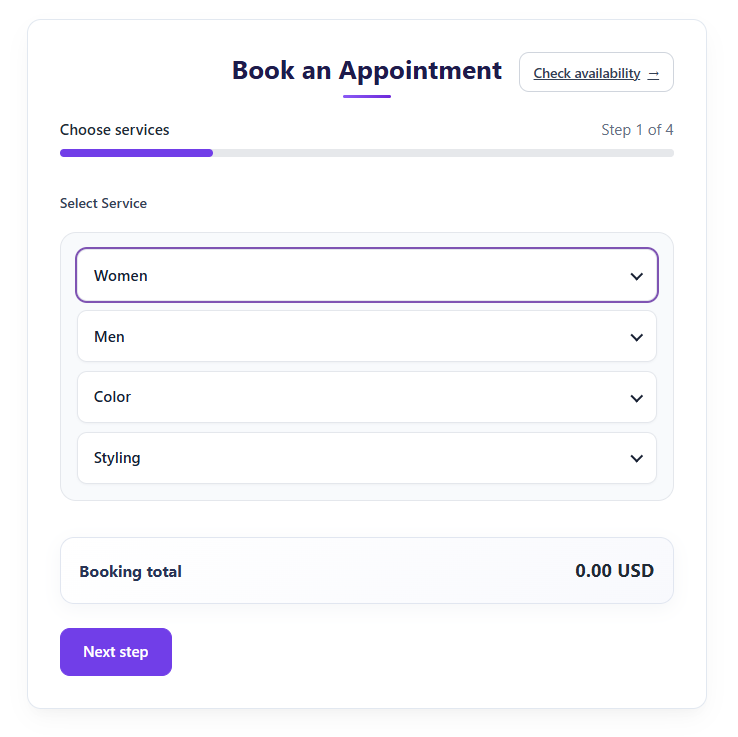
Use ServiCal → All Services to create or edit services. Use ServiCal → All Staffs to manage staff profiles and assigned services. If you enable service categories and assign services to them, customers can browse the groups in the booking form. If categories are not enabled, the form shows the service list without category accordions.
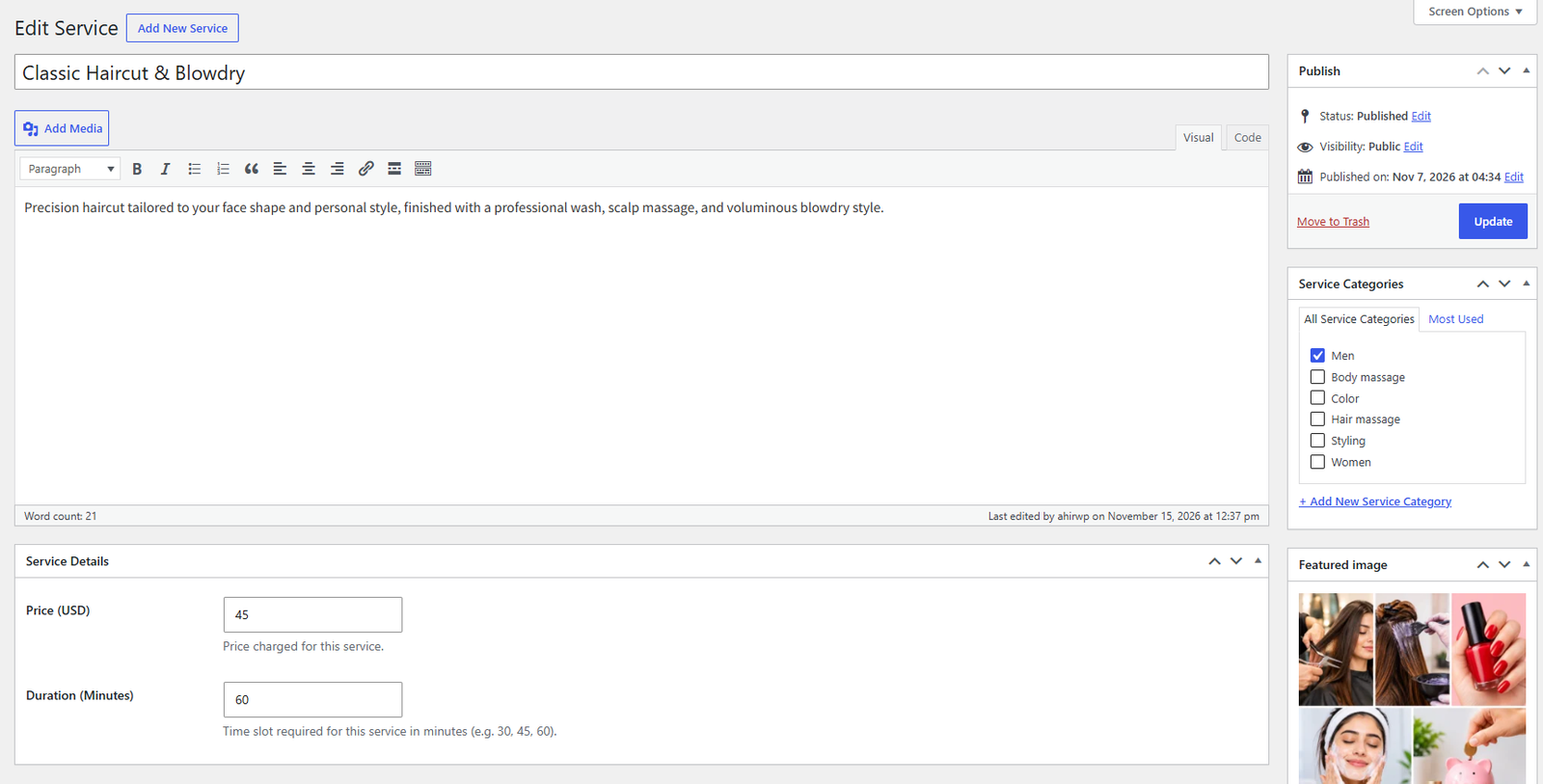

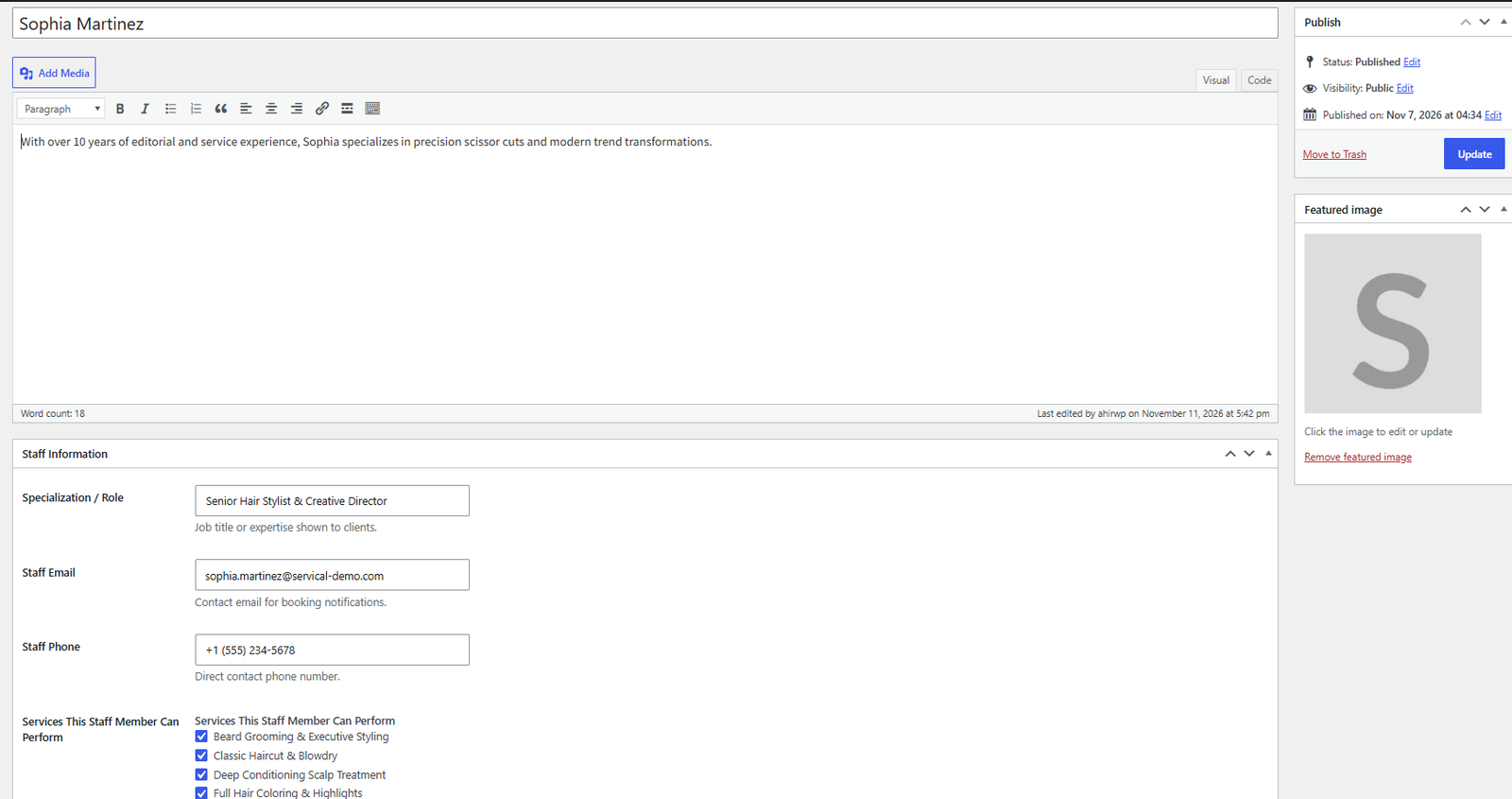
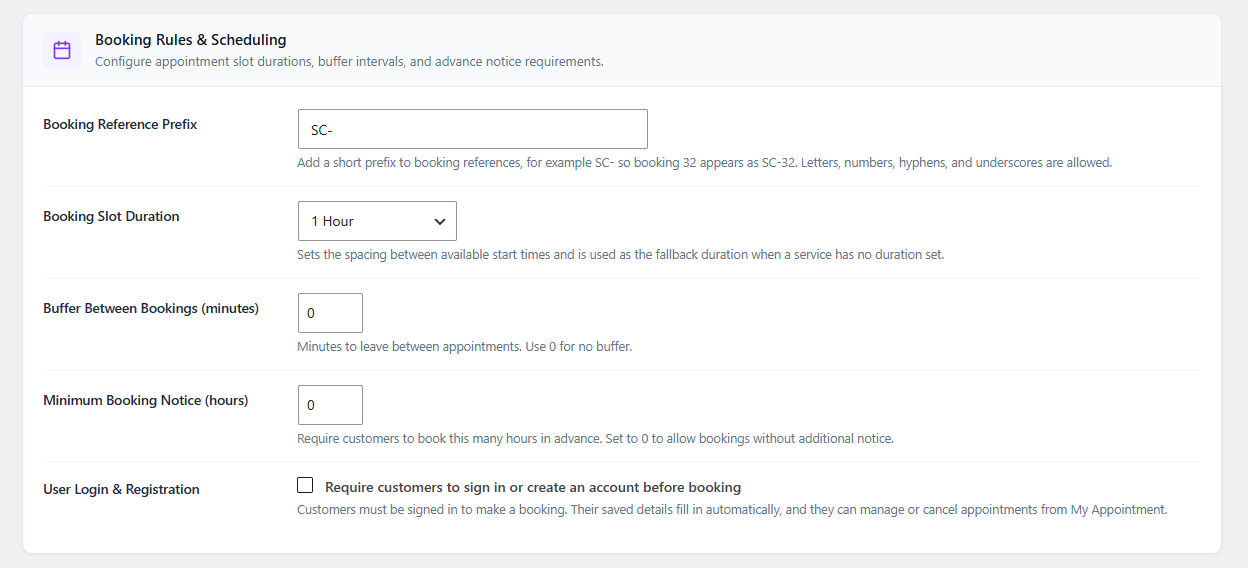
Set regular business hours and each staff member's schedule. A time is offered only when the selected service duration fits the schedule and the assigned staff member is available. Existing bookings occupy the selected staff member's time; another available staff member may still be bookable for the same time.
Slot duration controls the start-time interval. It is separate from a service's duration: for example, a 60-minute service can have start times offered at 30-minute intervals when configured that way. Buffer time and advance notice further affect available slots.

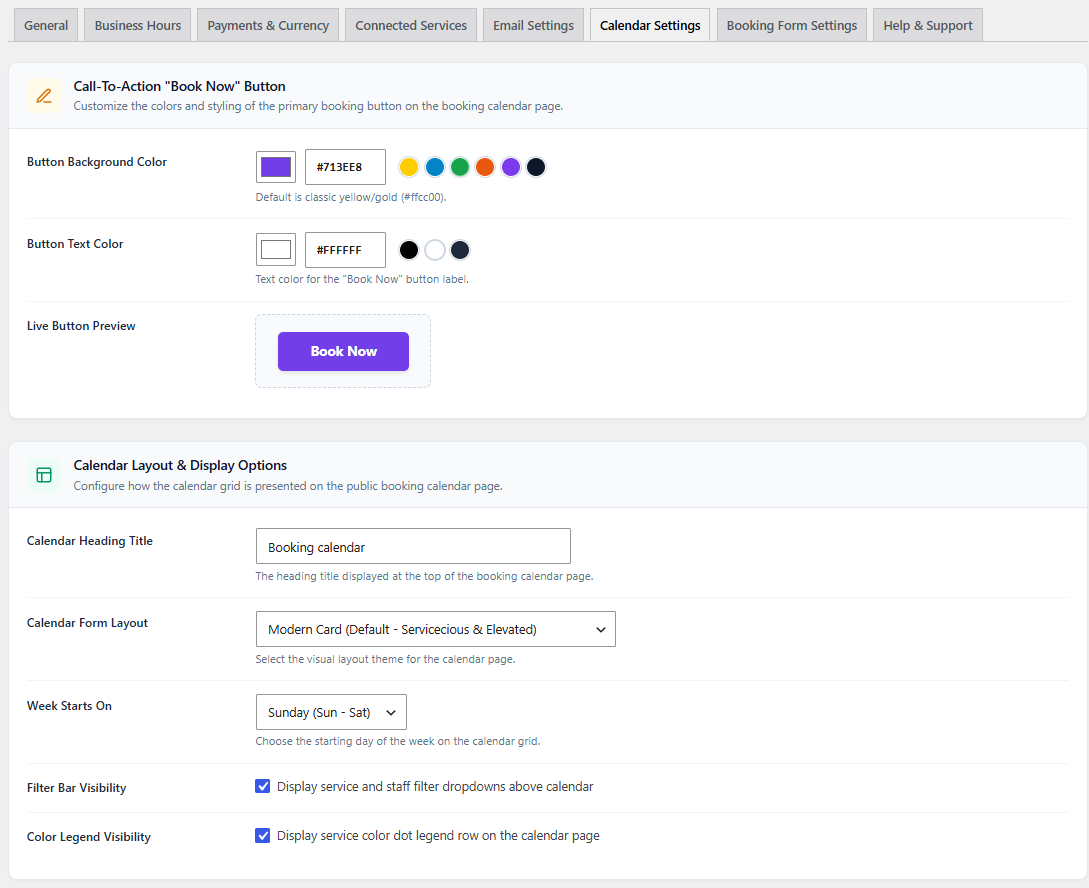
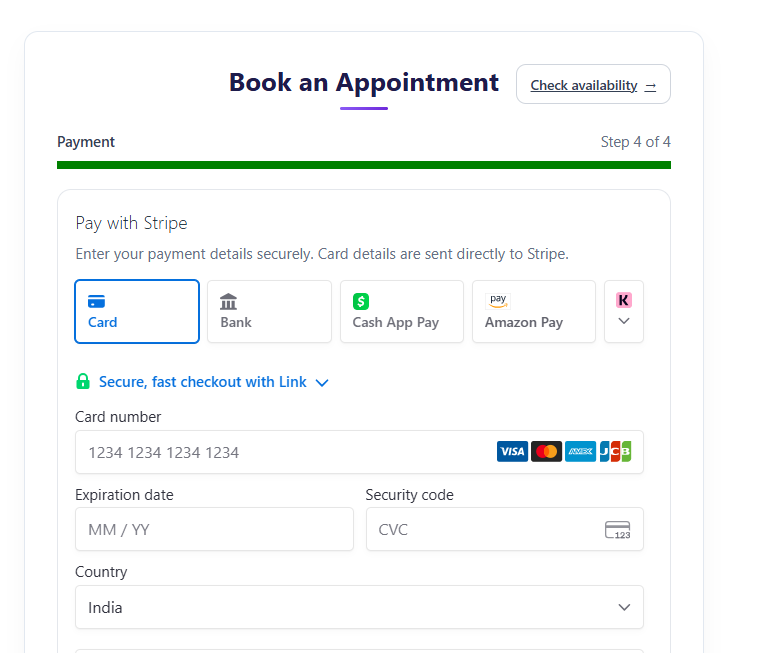
Enable the methods you want customers to see. Pay at service records a booking without collecting an online payment. Stripe and PayPal are optional online gateways. When partial payments are enabled, customers paying online can choose the configured deposit or pay the full total. The booking summary displays the amount due now and remaining balance.
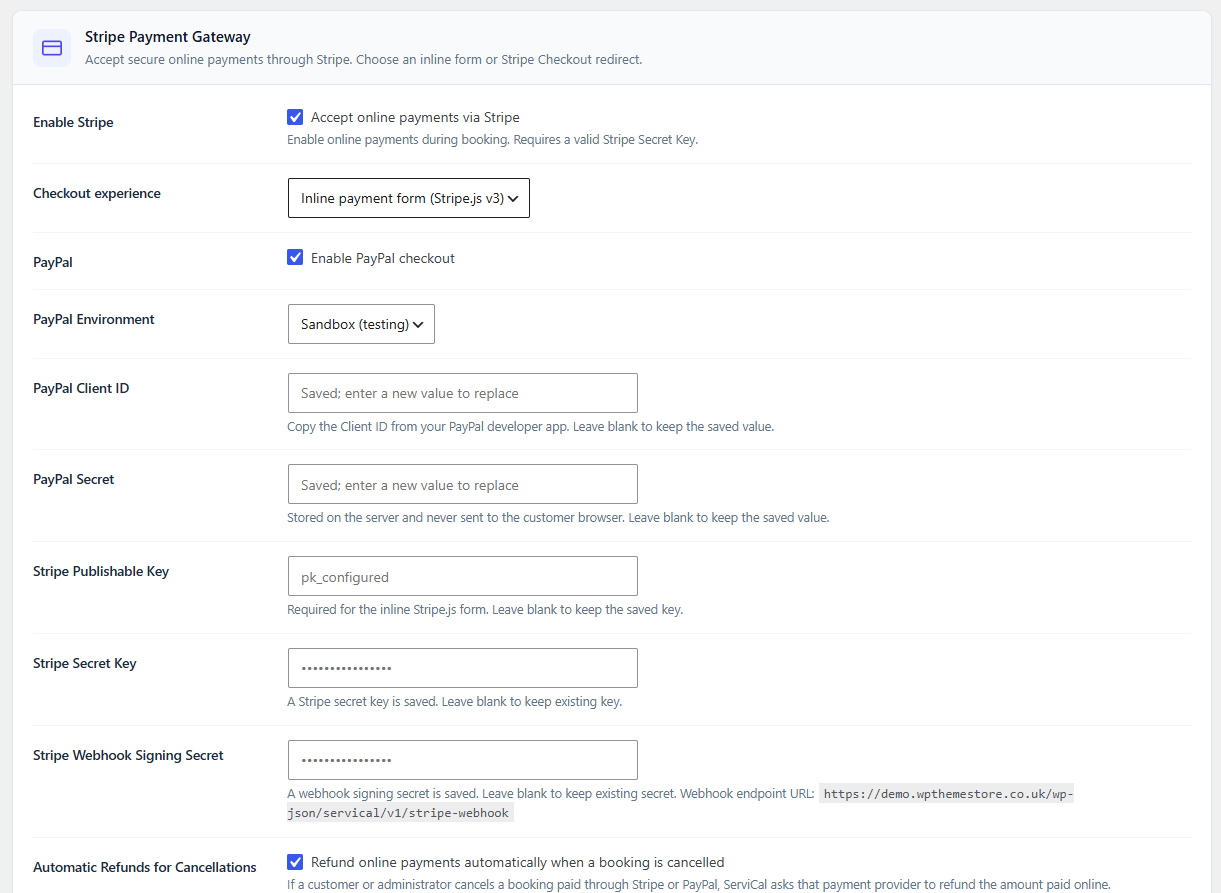
Use Stripe test keys and PayPal Sandbox while configuring checkout. Switch to live credentials only after test bookings, payment confirmation, and refunds have been reviewed. Stripe webhook configuration is required for payment confirmation events.
Use the General tab to choose whether account registration or sign-in is required, and whether email verification or Google reCAPTCHA is enabled. Follow data protection rules that apply to your business. The uninstall data option controls whether ServiCal records and settings are retained or removed when the plugin is uninstalled.


Customer and admin workflow

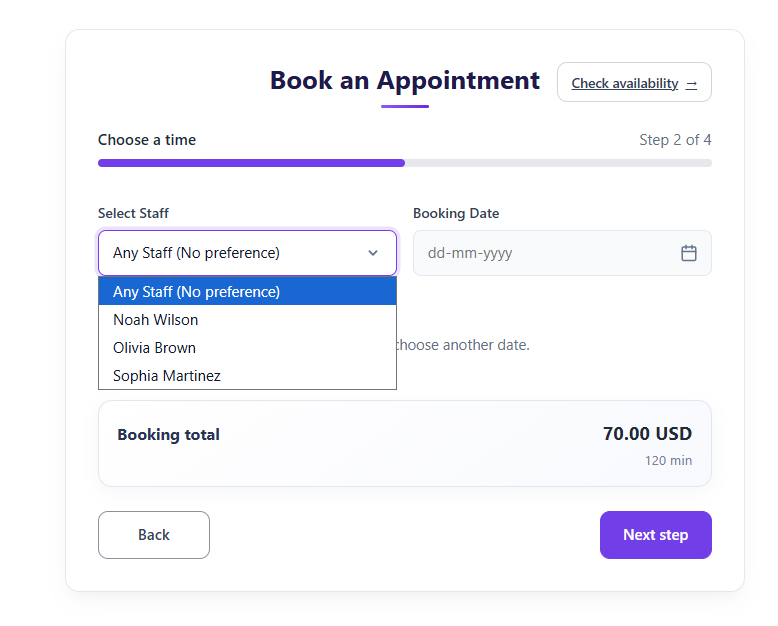
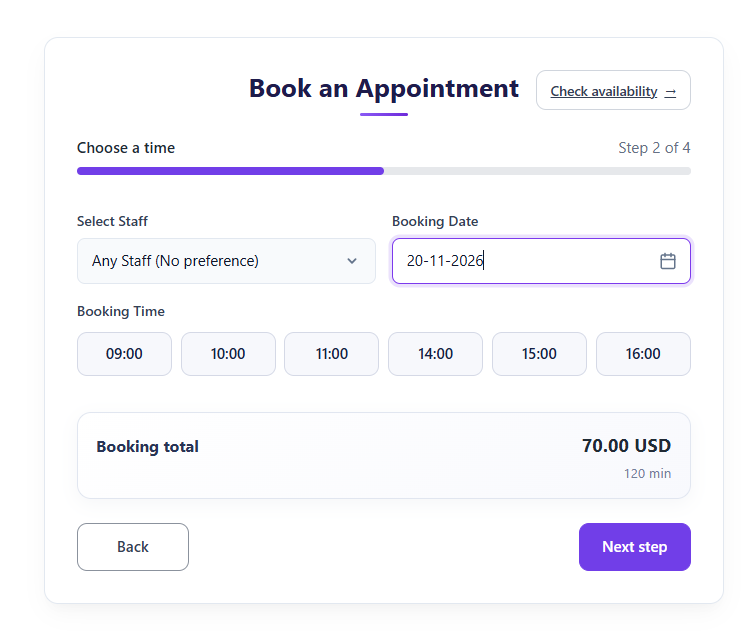

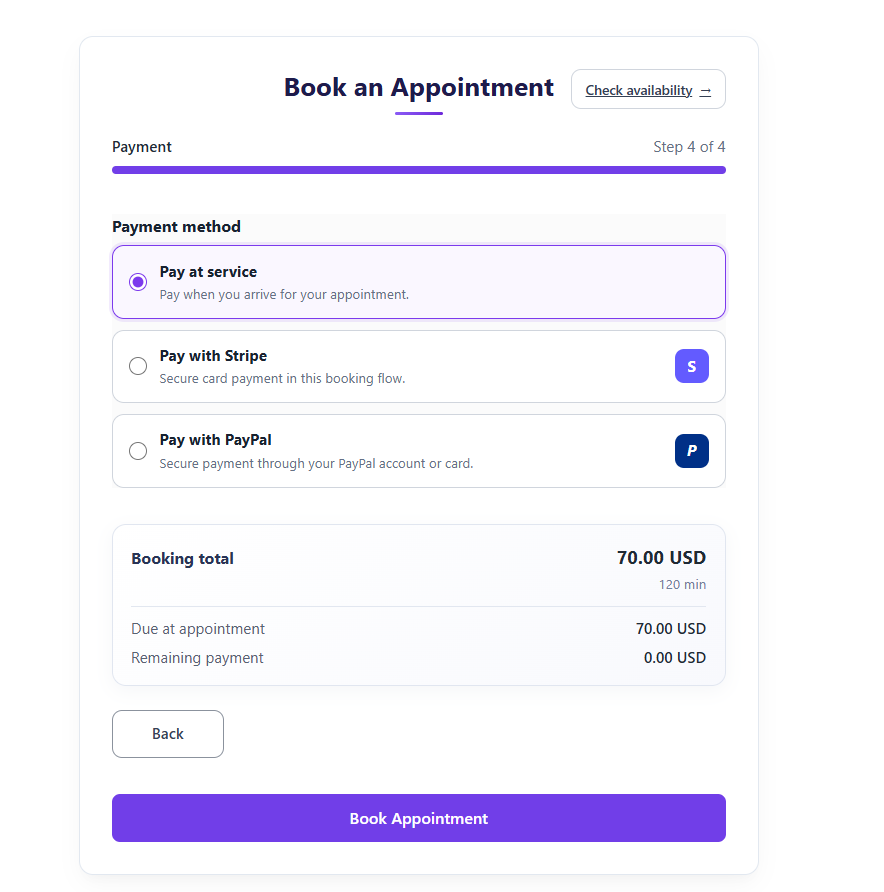
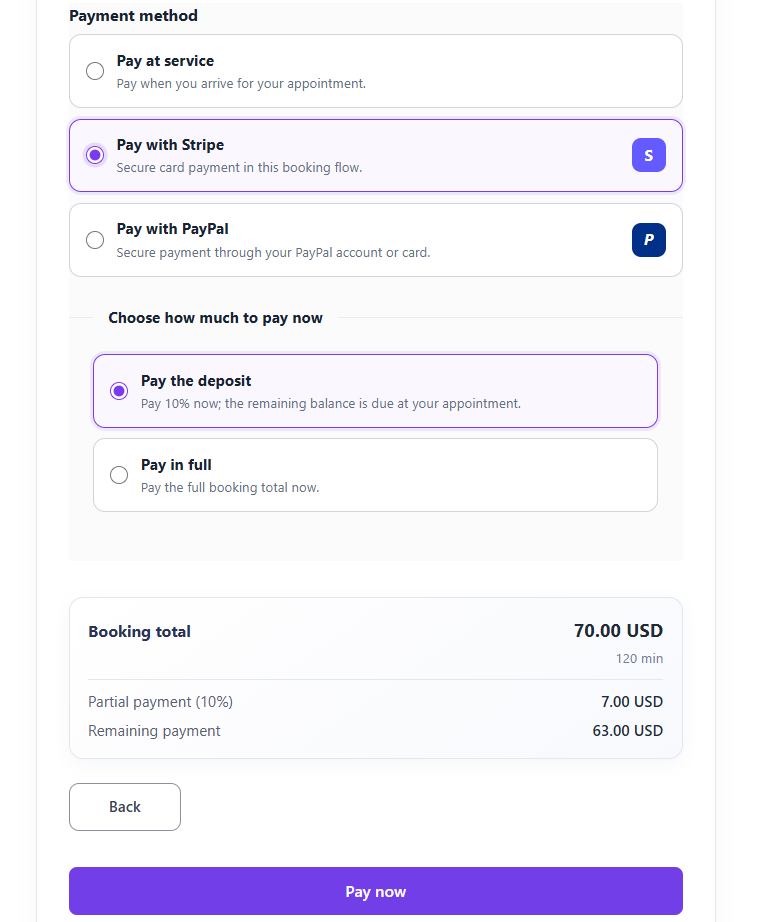
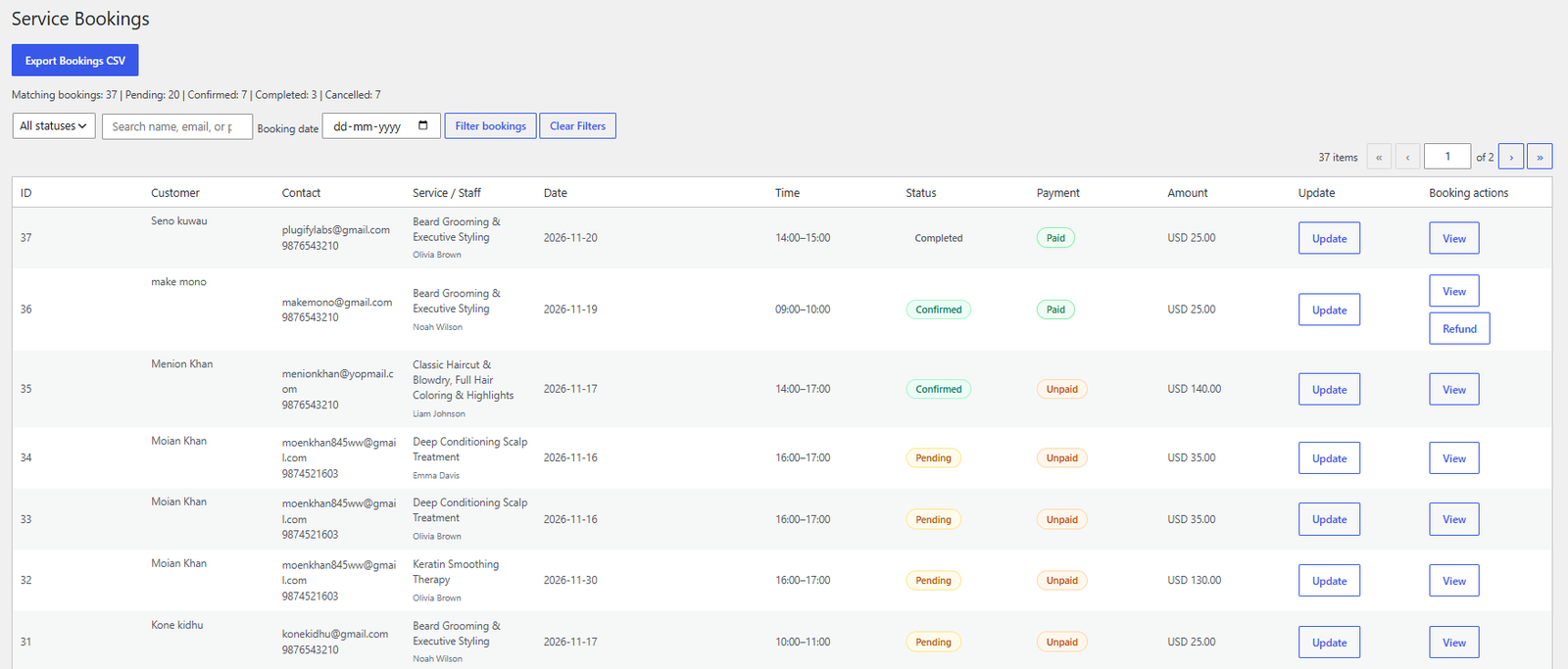
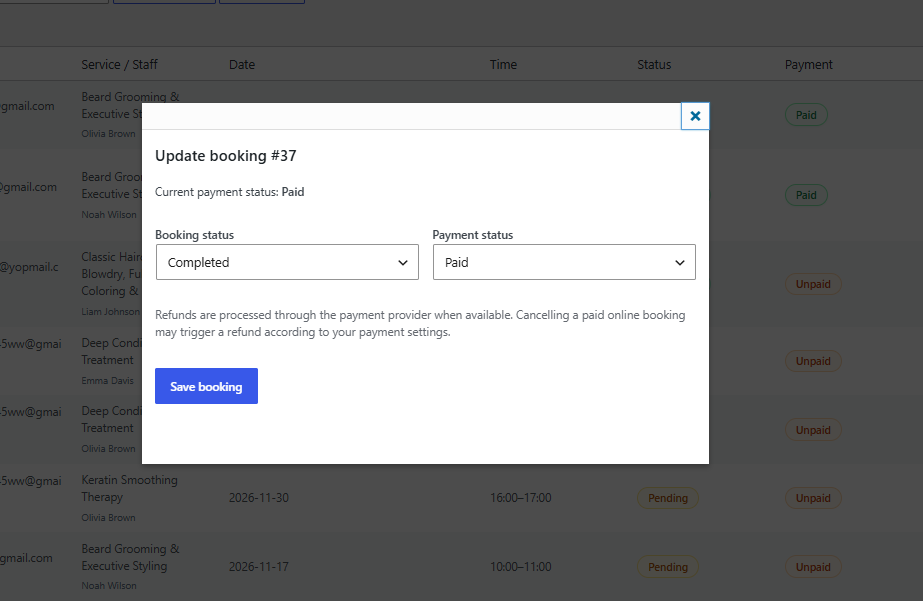
Open ServiCal → Bookings to search and filter reservations by customer, email, date, or status. Use View to inspect a booking, Update to change its booking or payment status, and the available action to request a refund for eligible online payments. Keep payment provider records in view when reconciling refunds.

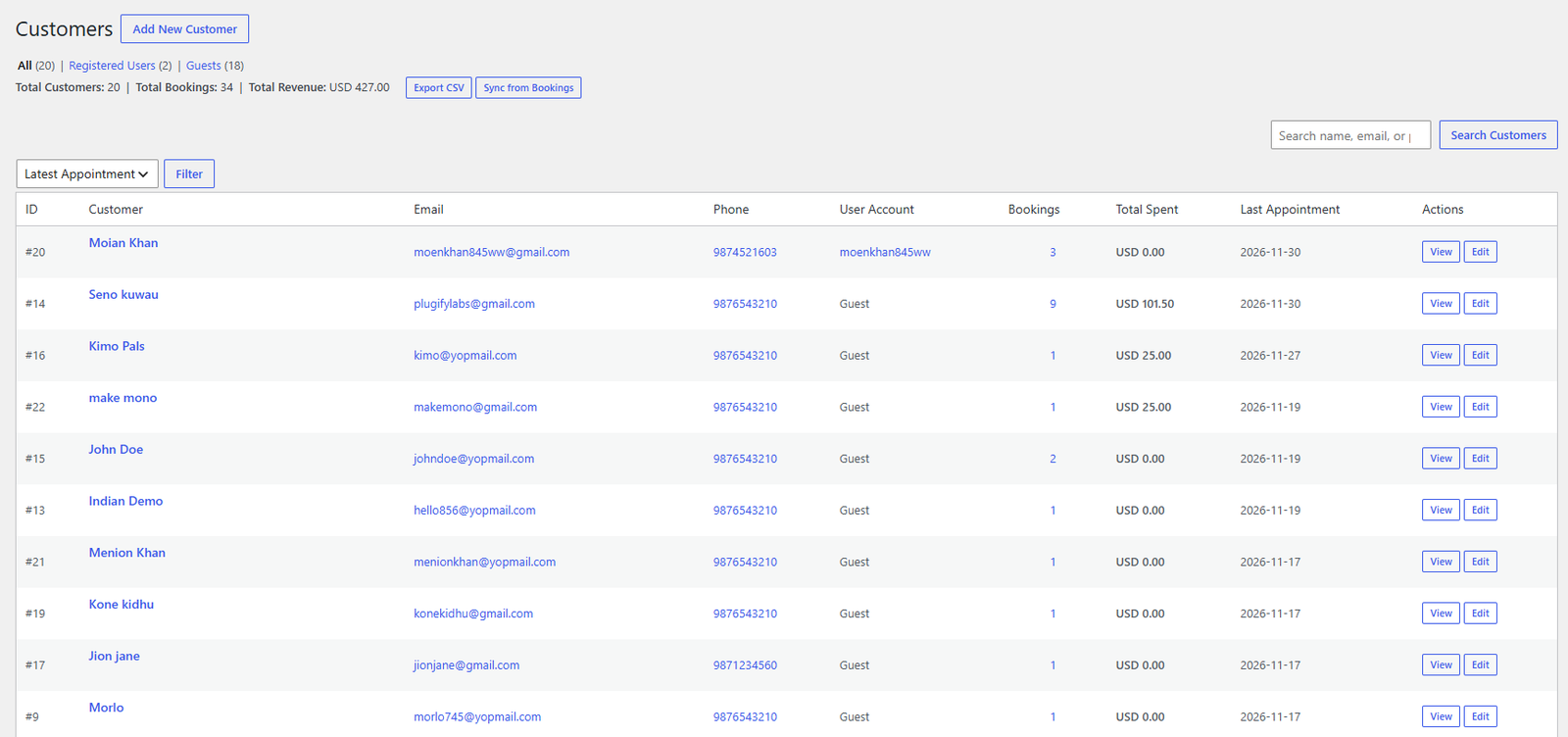
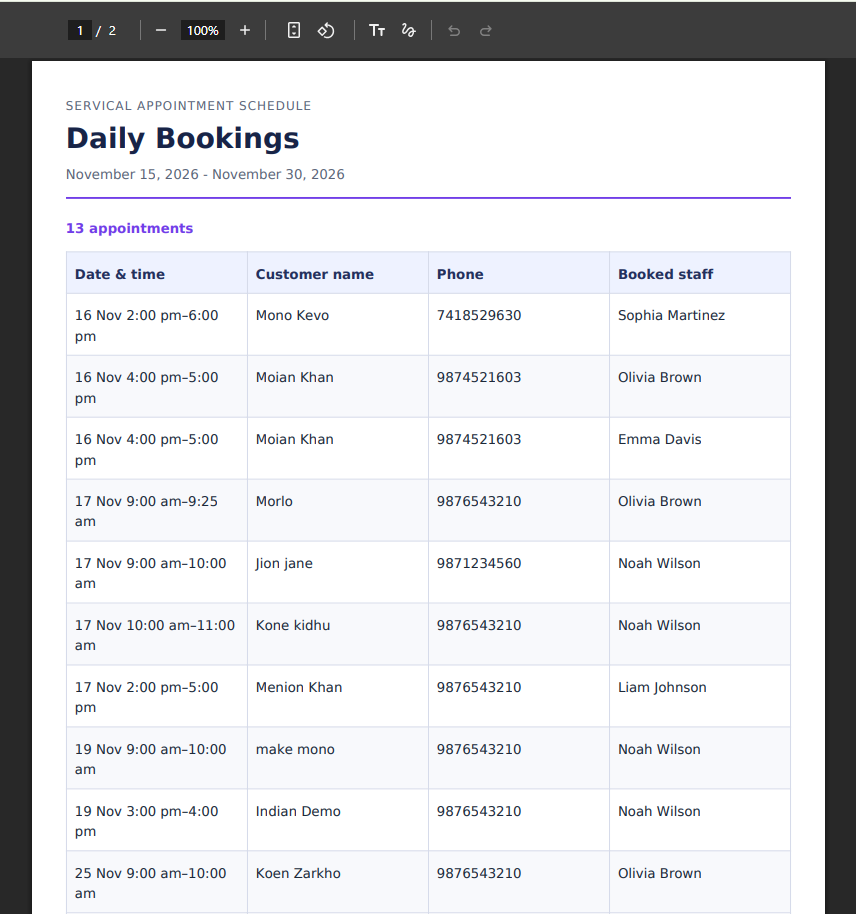
Open ServiCal → Daily Bookings, set a start and end date, and filter the list. Download the PDF call list to print appointment date and time, customer name, phone, and assigned staff. The report includes pending and confirmed appointments. The Bookings and Customers screens also provide CSV export options.

Add [servical_user_dashboard] to the My Appointment page. Customers who sign in can review appointments and use the available reschedule or cancellation actions. If account registration is not required, the site setting and customer booking flow determine how the customer accesses their records. Review your cancellation and refund policy and explain it to customers before taking bookings.
When an administrator changes a booking from another status to Completed, ServiCal immediately attempts to send a one-time review invitation email to the customer's saved email address. The invitation is not delayed until the appointment date. A valid customer email and working WordPress email delivery are required. Existing invitation records prevent another invitation for the same booking; the token expires after 30 days. Submitted reviews are held for approval under ServiCal → Reviews, then may be displayed with [servical_reviews].

Add ServiCal to pages
Paste a shortcode into a WordPress Shortcode block, a page editor that supports shortcodes, or the appropriate widget. Keep the brackets when copying.
| Shortcode | What it displays | Example |
|---|---|---|
[servical_booking_form] | Multi-step customer booking form. | [servical_booking_form] |
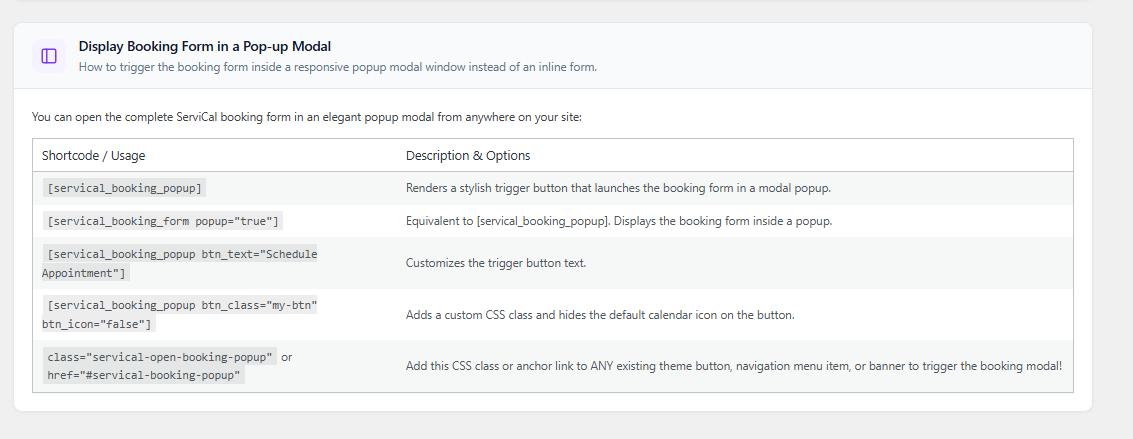
[servical_booking_popup] | A button that opens the booking form in a popup. | [servical_booking_popup btn_text="Book now"] |
[servical_booking_form] | Booking form rendered as a popup via its attribute. | [servical_booking_form popup="true" btn_text="Book now"] |
[servical_booking_calendar] | Monthly availability calendar. | [servical_booking_calendar] |
[servical_event_calendar] | Alias for the booking calendar. | [servical_event_calendar] |
[servical_user_dashboard] | Customer appointment account area. | [servical_user_dashboard] |
[servical_customer_dashboard] | Alias for the customer appointment account area. | [servical_customer_dashboard] |
[servical_booking_confirmation] | Booking confirmation summary for a separate thank-you page. Usually managed by the plugin's page setting. | [servical_booking_confirmation] |
[servical_review_form] | Secure review form opened from a valid one-time invitation link. | [servical_review_form] |
[servical_reviews] | Approved public customer reviews. | [servical_reviews limit="6"] |
The limit attribute on [servical_reviews] is optional and capped at 50. Popup shortcode options include button text, class, style, and icon where supported by the current plugin version. Check Settings → Help & Support for the installed version's usage table.
Optional services
checkout.session.completed webhook event. For inline payment, configure payment_intent.succeeded. Use the webhook URL and secret shown by the plugin's setup guidance.Card numbers and security codes are collected by Stripe's components and are not stored in ServiCal. Stripe receives the payment amount and the booking details needed to create and reconcile the transaction. Review Stripe's privacy policy and service agreement.
The PayPal Secret is stored server-side. PayPal's JavaScript SDK displays the customer checkout controls, and the server verifies and captures the approved order. See PayPal developer documentation, privacy, and user agreement.
This connects the administrator's authorized primary calendar; it does not connect customer calendars or invite customers. Google OAuth apps left in Testing may have short-lived refresh tokens. For production, configure the consent screen and verification requirements that apply to your Google project. Review Google's OAuth web-server guide and Calendar API guide.
reCAPTCHA is optional. Add the site and secret keys for the configured reCAPTCHA integration in the plugin settings. When enabled, Google receives the response token and may process visitor information such as the IP address and browser context. Review Google's privacy policy and terms.
Customer communication
Open ServiCal → Settings → Email Notifications to configure the sender name and address, administrator alerts, and customer email templates. Edit the subject and message content using the visual or code editor. Click a placeholder tag to insert booking information supported by that template.
ServiCal sends mail through WordPress wp_mail(). For reliable delivery, configure an SMTP or transactional mail service through your WordPress hosting or a trusted mail plugin. Test messages to more than one email provider and check spam folders.


Common questions
Confirm the service is published and has a duration; the selected day is a working day; the selected staff member is assigned to the service and has working hours; the date is not blocked; and the requested time meets the notice and buffer rules. Check the WordPress timezone under Settings → General. Existing appointments block overlapping time for that staff member, not every staff member.
Check that the customer email is valid, the relevant email type is enabled, and the sender settings are correct. Test wp_mail() delivery through your mail host or SMTP provider, then inspect spam and delivery logs. Review invitation emails are only triggered when the status changes into Completed; the appointment date does not delay the invitation.
Check that the selected gateway is enabled, credentials match Sandbox/Test or Live mode, and the currency is supported by the merchant account. For Stripe, check webhook configuration and delivery. For PayPal, use a Sandbox buyer and business account for test transactions. Confirm that the required payment method is enabled in the booking settings.
Check the client ID, client secret, authorized redirect URI, Calendar API enablement, and account authorization. Reconnect after changing OAuth credentials. WP-Cron must run to process queued calendar updates; review the WordPress Cron status or configure a server cron.
Ask your host to enable the PHP DOM and mbstring extensions. Select a valid start and end date and confirm the date range contains pending or confirmed bookings.
Use a WordPress Shortcode block or a page area that executes shortcodes. Check the spelling and brackets, then confirm that ServiCal is active.
For confirmation links, return to the confirmation page from the booking flow rather than reusing an old temporary link. Review links expire after 30 days and are one-time invitations. Customer dashboard access may require signing in with the account linked to the booking.
Frequently asked questions
No. ServiCal stores and manages appointments in WordPress. WooCommerce is not required.
Yes. Multiple selected service prices and durations are combined for the booking.
Yes. Availability is checked against the selected staff member's schedule and existing bookings, so a free staff member can remain bookable even if another staff member is occupied.
When partial payment is enabled, online customers can choose the configured deposit or full payment. Pay at service is controlled separately in payment settings.
Yes. The review invitation is triggered by the admin status change to Completed; it does not wait for the appointment date.
Yes. Set the prefix in the General or booking rules settings, then save. New booking references use the configured prefix.
This guide covers the controls available in the plugin. Check the installed package's Help & Support tab and release notes for any import tools included in your version.
Interface reference
These images illustrate the ServiCal settings and workflows represented in this guide. Select an image to open it at full size. Review screenshots before distributing this guide to make sure any visible demonstration records and account details are approved for publication.


Notices and licenses
ServiCal includes the third-party components listed below. Keep their license notices with the plugin when copying or redistributing it. Paths in the final column are relative to the plugin folder.
| Library / component | Version | Author / project | Official source | License | License file in plugin |
|---|---|---|---|---|---|
| Flatpickr | 4.6.13 | Flatpickr project | GitHub project | MIT | public/js/FLATPICKR-LICENSE.md |
| Dompdf | 3.1.6 | Dompdf Community | GitHub project | LGPL-2.1 | includes/vendor/dompdf/LICENSE.LGPL |
| PHP Font Lib | 1.0.2 | Dompdf project | GitHub project | LGPL-2.1-or-later | includes/vendor/dompdf/vendor/dompdf/php-font-lib/LICENSE |
| PHP SVG Lib | 1.0.2 | Dompdf project | GitHub project | LGPL-3.0-or-later | includes/vendor/dompdf/vendor/dompdf/php-svg-lib/LICENSE |
| HTML5-PHP | 2.10.1 | Masterminds | GitHub project | MIT | includes/vendor/dompdf/vendor/masterminds/html5/LICENSE.txt |
| PHP CSS Parser | 8.9.0 | Sabberworm / MyIntervals | GitHub project | MIT | includes/vendor/dompdf/vendor/sabberworm/php-css-parser/LICENSE |
| Composer generated autoloader | Generated for bundled dependencies | Composer project | Composer | MIT | includes/vendor/dompdf/vendor/composer/LICENSE |
| DejaVu font files and metadata | Bundled by Dompdf; exact font build not independently verified | DejaVu Fonts project | GitHub project | See upstream DejaVu / Bitstream Vera / Arev license terms | includes/vendor/dompdf/vendor/dompdf/dompdf/lib/fonts/DejaVu-LICENSE.txt |
| Adobe Core 14 AFM files | Bundled with Dompdf | Adobe font metric files distributed by Dompdf | Dompdf project | Accompanying upstream notice applies | includes/vendor/dompdf/vendor/dompdf/dompdf/lib/fonts/mustRead.html |
| Dompdf sRGB ICC profile | sRGB2014 profile in Dompdf release | International Color Consortium profile | ICC | ICC profile terms | includes/vendor/dompdf/vendor/dompdf/dompdf/lib/res/sRGB2014.icc.LICENSE |
These are loaded from their providers only when the matching optional feature is used. Their SDK source files are not bundled in the plugin, so there is no third-party SDK license file inside the plugin ZIP. Provider terms and privacy policies apply.
| Service / SDK | Version | Provider / official source | License or terms | Local license file |
|---|---|---|---|---|
| Stripe.js | v3 endpoint; provider-served version | Stripe | Stripe service terms; see Stripe agreement | Not bundled |
| PayPal JavaScript SDK | Provider-served; loaded from the SDK URL | PayPal Developer | PayPal service terms; see PayPal user agreement | Not bundled |
| Google Calendar API and OAuth 2.0 | Calendar API v3; provider API | Google Developers | Google API terms and privacy policy | No Google client library bundled |
| Google reCAPTCHA | Provider-served endpoint | Google Developers | Google reCAPTCHA terms and privacy policy | Not bundled |
For the plugin's component inventory and bundled notices, see THIRD-PARTY-NOTICES.txt at the plugin root. ServiCal's own code is licensed under GPL-2.0-or-later; see the plugin header and LICENSE.txt.
Release history